Reading List
The most recent articles from a list of feeds I subscribe to.
Idea: The simplest registration form ever
If a web application has some sort of registration system (and most do), the registration page should be one of the most attractive, inviting, usable pages of it. It should make you to want to register, not repulse you. We don’t want the user to give up in the middle of filling it because they are fed up with it’s length or bad usability, or -even worse- not even attempt to do so, do we?
The most popular websites usually take this rule to heart and employ the simplest registration forms: Only the basic fields required, and most of the times, even without password/email confirmation.
I was wondering lately - what would be the simplest possible registration form? It should have the minimum number of fields required: Username and password and a field for some kind of human verification.
At this point, some readers might argue “Hey, why not an email field as well?”. In my opinion, the email is not always a required field. Let’s see why it’s being asked for in most cases: Unique identification (to prevent double accounts) and for sending out notifications for important events. However, it’s useless for the first purpose due to all these disposable email websites. As for the second purpose, since notifications can be switched off (and if not, then they are essentially considered spam), it could be regarded optional and we don’t include optional fields in registration forms, do we? ;-)
Of course, in websites that use the email instead of a username to let their users log in, you may just substitute the username field above with an email field (since in that case, the username is what could be considered optional) and we also have two fields. Smart readers might have noticed another pattern here: The only fields that are truly required for a registration form are the same ones that are required for a login form plus a human verification field.
And then it dawned on me: We can make the registration process almost as quick as logging in! We could use the same form for both actions. The submit button label could indicate the dual nature of the form, for instance “Log in or register”. If the username (or email) doesn’t exist, we could then ask the user whether they want to create a new account and present them the human verification field at that point. There is no need for a password verification field, since we could just have a checkbox for displaying what the user typed, if they feel insecure about it.
I find 3 inherent issues with this approach:
- Security. If a login attempt fails, the user will know whether he got the username or the password wrong. However, in most websites, you can easily check whether a username exists anyway, so I don’t consider this a real concern. I just included it because I’m certain that if I didn’t, somebody would point it out to me in the comments.
- Despite being a more usable approach by nature, it’s not by any means a convention yet. Until it becomes one, I’m afraid that some users will be confused by its extreme …simplicity! Funny, isn’t it?
- We won’t be able to employ Ajax verification for the registration form, since it will essentially be a login form as well, and until the user submits, we won’t know what they plan to do (login or register). Having an Ajax verification script there by default will confuse existing users as hell (as in “What do they mean by ‘Username is taken’? WTF??”). So, we have to sacrifice some usability to gain some usability. The question is: Is the usability we gain more than the usability we sacrifice? What do you think?
As you can see by the problems mentioned above, it’s still a rough-on-the-edges idea (I just thought about it and I haven’t refined it yet), but I think it’s interesting. What are your thoughts?
Idea: The simplest registration form ever
If a web application has some sort of registration system (and most do), the registration page should be one of the most attractive, inviting, usable pages of it. It should make you to want to register, not repulse you. We don’t want the user to give up in the middle of filling it because they are fed up with it’s length or bad usability, or -even worse- not even attempt to do so, do we?
The most popular websites usually take this rule to heart and employ the simplest registration forms: Only the basic fields required, and most of the times, even without password/email confirmation.
I was wondering lately - what would be the simplest possible registration form? It should have the minimum number of fields required: Username and password and a field for some kind of human verification.
At this point, some readers might argue “Hey, why not an email field as well?”. In my opinion, the email is not always a required field. Let’s see why it’s being asked for in most cases: Unique identification (to prevent double accounts) and for sending out notifications for important events. However, it’s useless for the first purpose due to all these disposable email websites. As for the second purpose, since notifications can be switched off (and if not, then they are essentially considered spam), it could be regarded optional and we don’t include optional fields in registration forms, do we? ;-)
Of course, in websites that use the email instead of a username to let their users log in, you may just substitute the username field above with an email field (since in that case, the username is what could be considered optional) and we also have two fields. Smart readers might have noticed another pattern here: The only fields that are truly required for a registration form are the same ones that are required for a login form plus a human verification field.
And then it dawned on me: We can make the registration process almost as quick as logging in! We could use the same form for both actions. The submit button label could indicate the dual nature of the form, for instance “Log in or register”. If the username (or email) doesn’t exist, we could then ask the user whether they want to create a new account and present them the human verification field at that point. There is no need for a password verification field, since we could just have a checkbox for displaying what the user typed, if they feel insecure about it.
I find 3 inherent issues with this approach:
- Security. If a login attempt fails, the user will know whether he got the username or the password wrong. However, in most websites, you can easily check whether a username exists anyway, so I don’t consider this a real concern. I just included it because I’m certain that if I didn’t, somebody would point it out to me in the comments.
- Despite being a more usable approach by nature, it’s not by any means a convention yet. Until it becomes one, I’m afraid that some users will be confused by its extreme …simplicity! Funny, isn’t it?
- We won’t be able to employ Ajax verification for the registration form, since it will essentially be a login form as well, and until the user submits, we won’t know what they plan to do (login or register). Having an Ajax verification script there by default will confuse existing users as hell (as in “What do they mean by ‘Username is taken’? WTF??”). So, we have to sacrifice some usability to gain some usability. The question is: Is the usability we gain more than the usability we sacrifice? What do you think?
As you can see by the problems mentioned above, it’s still a rough-on-the-edges idea (I just thought about it and I haven’t refined it yet), but I think it’s interesting. What are your thoughts?
On password masking and usability
I just read Jakob Nielsen’s recent post in which he urged web designers/developers to stop password masking due to it’s inherent usability issues. I found it an interesting read. Hey, at last, someone dared to talk about the elephant in the room!
In most cases password masking is indeed useless, but still, there are several cases where you need that kind of protection. He also points that out, suggesting a checkbox to enable the user to mask their entered password if they wish to do so. He also suggests that checkbox being enabled by default on sites that require high security.
I think the checkbox idea is really good, as long as it works in the opposite way: Password masking should always be the default and you should check the checkbox to show the characters you typed. This is in line with what Windows (Vista or newer) users are already accustomed to anyway:
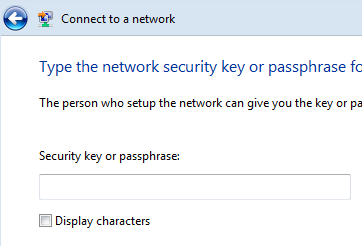
This can (and should) be done with JavaScript alone: if the user has it turned off, no problem, just a regular old password field. Of course the checkbox should also be dynamically added, to prevent users with disabled JS from viewing a checkbox that does nothing at all.
This seems easy at first, even without a library (although, in this particular case, a library would greatly reduce the amount of code required, so much that I’m tempted to include a jQuery version as well):
window.onload = function() {
	var passwords = document.getElementsByTagName('input');
	for(var i=0; i<passwords.length; i++) {
		if(passwords\[i\].type == 'password') {
			var password = passwords\[i\];

			var showCharsCheckbox = document.createElement('input');
				showCharsCheckbox.type = 'checkbox';
				showCharsCheckbox.onclick = (function(input) {
					return function() {
						input.type = this.checked? 'text' : 'password';
					};
				})(password);

			var showCharsLabel = document.createElement('label');
				showCharsLabel.appendChild(showCharsCheckbox);
				showCharsLabel.appendChild(document.createTextNode('Show characters'));

			// If the password field is inside a <label> element, we don't want to insert our label in there as well!
			var previousSibling = /label/i.test(password.parentNode.nodeName)? password.parentNode : password;

			// Check whether it's the last child of it's parent
			if(previousSibling.nextSibling) {
				previousSibling.parentNode.insertBefore(showCharsLabel, previousSibling.nextSibling);
			}
			else {
				previousSibling.parentNode.appendChild(showCharsLabel);
			}
		}
	}
}
However, nothing is ever simple, when you also need to support our beloved Internet Explorer. Most moderately experienced JavaScript developers have probably already understood what I’m talking about: The all time classic IE bug (still present in IE8…) in regards to setting an element’s type attribute. You can only set it once, for elements that are not already in the DOM. After that, it becomes read-only, and any attempt to set it results in a “The command is not supported” error. And when I say “any” attempt I mean it:
element.setAttribute()element.typeelement.setAttributeNode()element.removeAttribute()and thenelement.setAttribute()element.cloneNode(), then one of the above, then replacing the node with the clone
everything fails miserably.
I’ve encountered this problem several times in the past as well, but I could always think of an alternative way to do what I wanted without having to work around it. In this case, I don’t think there is one. So we’re left with two possible scenarios:
-
Perform an easy test in the beginning to see whether this bug exists and proceed only if the browser isn’t naughty. This could be done with the following:
var supportsChangingTypeAttribute = (function() { var input = document.createElement('input'); try { input.type = 'password'; input.type = 'text'; } catch(e) { return false; } return input.type == 'text'; })(); if(supportsChangingTypeAttribute) { // do stuff... } -
Wrap the statement that IE chokes on in a try…catch construct and in the catch(e) {…} block create a new input element, copy everything (where everything is at least: attributes, properties, event handlers - both traditional ones and listeners) from the password field into it (except the type attribute of course!) and replace the original password field with it. After the first time, the text field could also be reused, to improve performance. If you have a shortage of trouble in your life, you may attempt it, I currently do not. :P It can be a very simple task for particular cases, but a generic solution that would work in any site (or even in most sites) seems a really daunting, tedious and downright boring task. I also hope there might be a better solution, that I haven’t thought of. Any ideas?
On password masking and usability
I just read Jakob Nielsen’s recent post in which he urged web designers/developers to stop password masking due to it’s inherent usability issues. I found it an interesting read. Hey, at last, someone dared to talk about the elephant in the room!
In most cases password masking is indeed useless, but still, there are several cases where you need that kind of protection. He also points that out, suggesting a checkbox to enable the user to mask their entered password if they wish to do so. He also suggests that checkbox being enabled by default on sites that require high security.
I think the checkbox idea is really good, as long as it works in the opposite way: Password masking should always be the default and you should check the checkbox to show the characters you typed. This is in line with what Windows (Vista or newer) users are already accustomed to anyway:
This can (and should) be done with JavaScript alone: if the user has it turned off, no problem, just a regular old password field. Of course the checkbox should also be dynamically added, to prevent users with disabled JS from viewing a checkbox that does nothing at all.
This seems easy at first, even without a library (although, in this particular case, a library would greatly reduce the amount of code required, so much that I’m tempted to include a jQuery version as well):
window.onload = function() {
	var passwords = document.getElementsByTagName('input');
	for(var i=0; i<passwords.length; i++) {
		if(passwords\[i\].type == 'password') {
			var password = passwords\[i\];

			var showCharsCheckbox = document.createElement('input');
				showCharsCheckbox.type = 'checkbox';
				showCharsCheckbox.onclick = (function(input) {
					return function() {
						input.type = this.checked? 'text' : 'password';
					};
				})(password);

			var showCharsLabel = document.createElement('label');
				showCharsLabel.appendChild(showCharsCheckbox);
				showCharsLabel.appendChild(document.createTextNode('Show characters'));

			// If the password field is inside a <label> element, we don't want to insert our label in there as well!
			var previousSibling = /label/i.test(password.parentNode.nodeName)? password.parentNode : password;

			// Check whether it's the last child of it's parent
			if(previousSibling.nextSibling) {
				previousSibling.parentNode.insertBefore(showCharsLabel, previousSibling.nextSibling);
			}
			else {
				previousSibling.parentNode.appendChild(showCharsLabel);
			}
		}
	}
}
However, nothing is ever simple, when you also need to support our beloved Internet Explorer. Most moderately experienced JavaScript developers have probably already understood what I’m talking about: The all time classic IE bug (still present in IE8…) in regards to setting an element’s type attribute. You can only set it once, for elements that are not already in the DOM. After that, it becomes read-only, and any attempt to set it results in a “The command is not supported” error. And when I say “any” attempt I mean it:
element.setAttribute()element.typeelement.setAttributeNode()element.removeAttribute()and thenelement.setAttribute()element.cloneNode(), then one of the above, then replacing the node with the clone
everything fails miserably.
I’ve encountered this problem several times in the past as well, but I could always think of an alternative way to do what I wanted without having to work around it. In this case, I don’t think there is one. So we’re left with two possible scenarios:
-
Perform an easy test in the beginning to see whether this bug exists and proceed only if the browser isn’t naughty. This could be done with the following:
var supportsChangingTypeAttribute = (function() { var input = document.createElement('input'); try { input.type = 'password'; input.type = 'text'; } catch(e) { return false; } return input.type == 'text'; })(); if(supportsChangingTypeAttribute) { // do stuff... } -
Wrap the statement that IE chokes on in a try…catch construct and in the catch(e) {…} block create a new input element, copy everything (where everything is at least: attributes, properties, event handlers - both traditional ones and listeners) from the password field into it (except the type attribute of course!) and replace the original password field with it. After the first time, the text field could also be reused, to improve performance. If you have a shortage of trouble in your life, you may attempt it, I currently do not. :P It can be a very simple task for particular cases, but a generic solution that would work in any site (or even in most sites) seems a really daunting, tedious and downright boring task. I also hope there might be a better solution, that I haven’t thought of. Any ideas?
Tip: Multi-step form handling
First of all, sorry for my long absence! I haven’t abandoned this blog, I was just really, really busy. I’m still busy, and this probably won’t change soon. However, I will still blog when I get too fed up with work or studying (this is one of these moments…). Now, let’s get to the meat.
The situation
In most web applications, even the simplest ones, the need for form handling will arise. There will be forms that need to be submitted, checked, processed or returned to the user informing them about any errors. A good empirical rule I try to follow is “Try not to produce URLs that don’t have a meaning if accessed directly”. It sounds simple and common-sense, doesn’t it? However, as Francois Voltaire said, “common sense is not so common”. I’ve seen variations of the following scenario several times, in several websites or even commercial web application software:
Lets assume we have a two step process, like a registration form with an arguably¹ bad usability. The hypothetical script is called register.php (PHP is just an example here, the exact language doesn’t matter, it could be register.jsp or anything else). The user fills in the information required for the first step, and if they get it right, they advance to something like register.php?step=2 to complete the rest of the information. They fill in their information there as well, and submit the form. Everything is fine.
Or is it?
What we have done this way is that we have effectively created a completely useless URL. If someone tries to access register.php?step=2 directly (via their history for instance), we don’t have the POST data from the first step, so we either have to redirect them to the first step or, even worse, assume they are actually coming from the first step and present it to them full of errors telling them they got everything wrong. In both cases we have duplicate content, and in the second one, usability suffers a great deal.
So, the right way is to pass step=2 via POST as well. This way, the URL stays as it was (register.php) and we avoid all the problems mentioned above. So, we end up doing something like this:
... form fields here ...
<input type="hidden" name="step" value="2" />
<input type="submit" value="Create my account" />
Now we’re done. Or not?
This works fine. However, there’s still room for improvement. We could get rid of the extra input element by utilizing the submit button. Yeah, it’s a form element too, even though we often overlook that and just focus on styling it. If we give it a name, it will get sent along with the other form fields. So instead of the html above, we can do that:
... form fields here ...
<input type="submit" name="step" value="2" />
But wait! What the f*ck is that ???
Now usability suffers! Instead of our nice “Create my account” button, the user now sees a cryptic “2”. Who cares if it works or if it requires less code, if nobody understands how to register, right? Luckily for us, we don’t have to use the <input /> tag to create submit buttons. A better (in terms of styling, semantics, markup clarity etc), albeit less known, alternative exists: The <button /> tag. When using the <button /> tag, the label of the button is derived from the markup within the start and end tags (yeah, we can also have html elements in there, not only text nodes, in case you’re wondering), not from the value attribute. So, we can set it’s name and value attributes to whatever we want, and the user won’t notice a thing:
... form fields here ...
<button type="submit" name="step" value="2">Create my account</button>
It’s really simple, although not done often. I guess it’s one of these “OMG how come I’ve never thought about this??” kind of things. :P
¹ I firmly believe we should eliminate the number of steps required in any procedure and especially in registration forms that users are bored to fill in anyway. However, there’s an exception to that: If the form has to be big for some reason, breaking it into steps actually makes it more usable, since the user is not overwhelmed with all these fields. Another situation when this approach is favorable is when the second step is determined according to the data from the first, although thanks to JavaScript and Ajax, this is becoming obsolete nowadays.