Reading List
The most recent articles from a list of feeds I subscribe to.
rgba.php v1.2: Improved URL syntax, now at Github
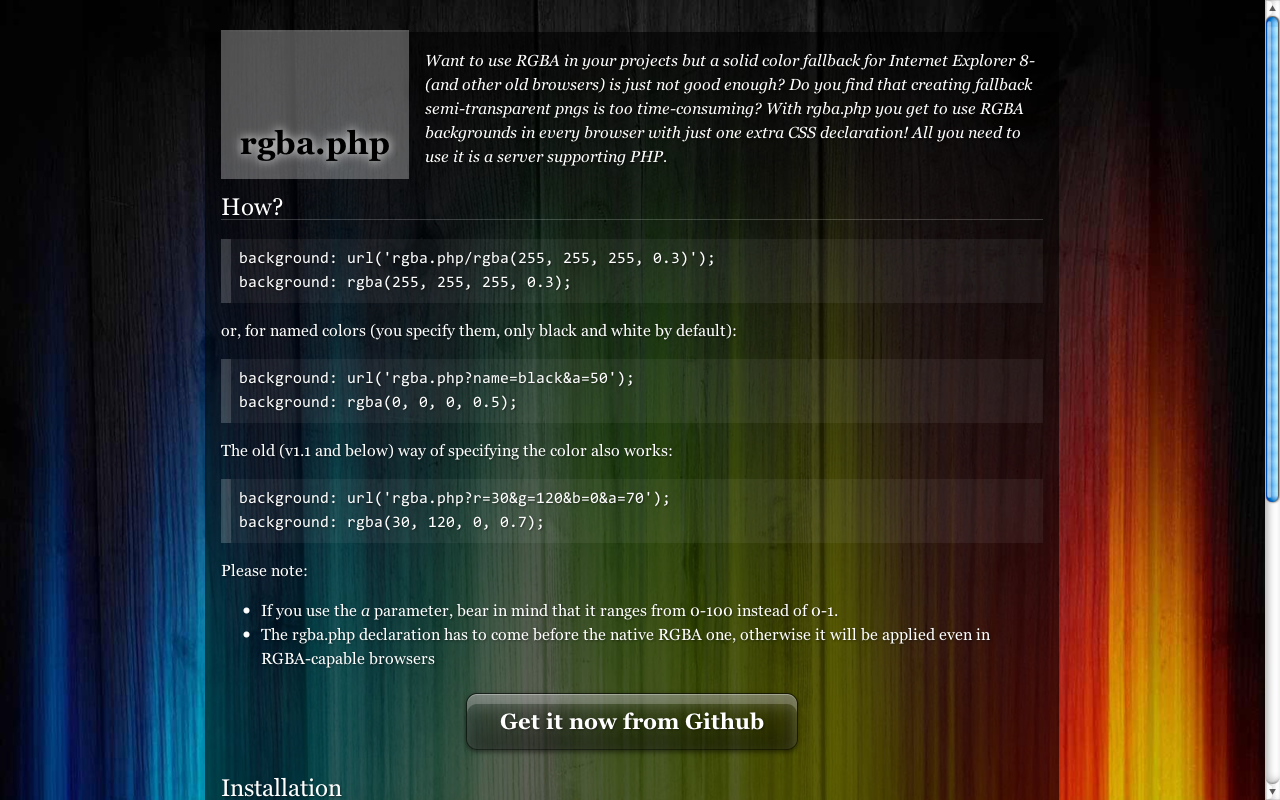 I wrote the first version of rgba.php as a complement to an article on RGBA that I posted on Februrary 2009. Many people seemed to like the idea and started using it. With their valuable input, I made many changes and released v.1.1 (1.1.1 shortly after I posted the article due to another little fix) on October 2009. More than a year after, quite a lot of people still ask me about it and use it, so I decided to make a github repo for it and release a new version, with a much easier to use syntax for the URL, which lets you just copy and paste the color instead of rewriting it:
background: url(‘rgba.php/rgba(255, 255, 255, 0.3)’); background: rgba(255, 255, 255, 0.3);
instead of:
background: url(‘rgba.php?r=255&g=255&b=255&a=30’); background: rgba(255, 255, 255, 0.3);
I also made a quick about/demo page for it. Enjoy :)
rgba.php v1.2: Improved URL syntax, now at Github
I wrote the first version of rgba.php as a complement to an article on RGBA that I posted on Februrary 2009. Many people seemed to like the idea and started using it. With their valuable input, I made many changes and released v.1.1 (1.1.1 shortly after I posted the article due to another little fix) on October 2009. More than a year after, quite a lot of people still ask me about it and use it, so I decided to make a github repo for it and release a new version, with a much easier to use syntax for the URL, which lets you just copy and paste the color instead of rewriting it:
background: url(‘rgba.php/rgba(255, 255, 255, 0.3)’); background: rgba(255, 255, 255, 0.3);
instead of:
background: url(‘rgba.php?r=255&g=255&b=255&a=30’); background: rgba(255, 255, 255, 0.3);
I also made a quick about/demo page for it. Enjoy :)
Tag editing UIs
I had to build the edit tags interface for an application I’m working on, so I took a good look at how these are implemented across many popular applications nowadays. It seems there are a few patterns that are used over and over, and I’m unsure which one is the most preferable by users, they all have their advantages and disadvantages. In this post I’m going to describe these patterns and list some of the pros and cons I think they have. For simplicity, I will focus on the tag editing interface itself, ignoring any tag suggestions and other extra features.
Pattern #1: Input field to add new tags, delete button for existing ones
Used by: Wordpress, flickr, foursquare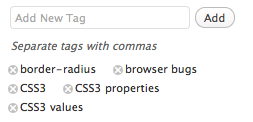
Pros:
- One click deletion of tags
Cons:
- Impossible to edit a tag, you have to remove it and add the corrected version
- Hard to delete many tags at once
- Disconnected new and existing tags, making it hard to get the bigger picture
foursquare’s implementation was the worst I’ve tested: There’s no (discoverable?) way to delete or edit a tag and when you add one via the text field it doesn’t get cleared which is confusing because it makes it seem like an edit tags field although it’s an add tags field, as I found out the hard way (by creating a “pizza, pasta” tag instead of 2 tags: pizza and pasta).
Pattern #2: One text field to edit, delete or add new tags
Used by: delicious, Google reader, stackoverflow, reddit
Pros:
- Lets the user edit tags too, in addition to adding and deleting
- Easy to delete many tags at once
- All tags at one place
Cons:
- More cumbersome to delete a tag
- A bit more prone to mistakes than guided interfaces
Pattern #3: Hybrid approach: Text field for all, existing tags seem to be inside and have a delete button
Used by: last.fm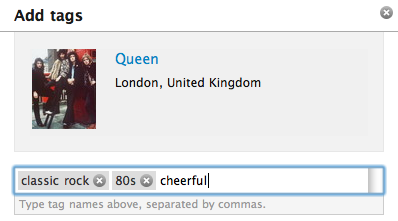
Pros:
- All tags in one place
- One click deletion
- Easy to delete many tags too
Cons:
- There’s no editing in last.fm’s implementation, but the pattern easily allows for that, for example by using contentEditable on the tag s
last.fm chooses to implement this by faking the tags being inside an input field: Technically they’re implemented just like in pattern #1 above, with the difference that they visually appear to be inside the same box and every time a user inserts a comma (which is the tag separator) the tag they just typed is removed from the text field and a new link with a delete button is created just before the text field, which is much smaller than it looks.
Which pattern is the best?
As with most UI questions, I don’t think there’s a definite answer to that. It heavily depends on the audience too: A more technically inclined user might be more comfortable with the 2nd approach since it’s the least restrictive one. The average casual internet user might prefer the 3rd approach. I don’t think there’s any case where pattern #1 is better than pattern #3, except when development time is a concern (pattern #1 is a bit easier to implement, although #2 is the easiest of all).
Another pattern?
My initial attempt for the application I’m building was to use a hybrid approach of #2 and #3: When the user clicked on “Edit tags”, the tag container would get a contentEditable attribute and the idea was that every time a comma or any other non-permitted character would be inserted a new tag would be created (or if we were in the middle of one, it would get split into 2). That would have all the advantages of #2 and #3, except one-click deletion. It would also have the advantage that the user is directly editing the interface, which is usually a good idea usability-wise. I hate to admit I gave up on it for the time being, because it proved harder to implement than it seemed and I had to move on, so I went with #2. I might revisit it sometime in the future though if I still think it’s a good idea and nobody has done so by then.
Tag editing UIs
I had to build the edit tags interface for an application I’m working on, so I took a good look at how these are implemented across many popular applications nowadays. It seems there are a few patterns that are used over and over, and I’m unsure which one is the most preferable by users, they all have their advantages and disadvantages. In this post I’m going to describe these patterns and list some of the pros and cons I think they have. For simplicity, I will focus on the tag editing interface itself, ignoring any tag suggestions and other extra features.
Pattern #1: Input field to add new tags, delete button for existing ones
Used by: Wordpress, flickr, foursquare
Pros:
- One click deletion of tags
Cons:
- Impossible to edit a tag, you have to remove it and add the corrected version
- Hard to delete many tags at once
- Disconnected new and existing tags, making it hard to get the bigger picture
foursquare’s implementation was the worst I’ve tested: There’s no (discoverable?) way to delete or edit a tag and when you add one via the text field it doesn’t get cleared which is confusing because it makes it seem like an edit tags field although it’s an add tags field, as I found out the hard way (by creating a “pizza, pasta” tag instead of 2 tags: pizza and pasta).
Pattern #2: One text field to edit, delete or add new tags
Used by: delicious, Google reader, stackoverflow, reddit
Pros:
- Lets the user edit tags too, in addition to adding and deleting
- Easy to delete many tags at once
- All tags at one place
Cons:
- More cumbersome to delete a tag
- A bit more prone to mistakes than guided interfaces
Pattern #3: Hybrid approach: Text field for all, existing tags seem to be inside and have a delete button
Used by: last.fm
Pros:
- All tags in one place
- One click deletion
- Easy to delete many tags too
Cons:
- There’s no editing in last.fm’s implementation, but the pattern easily allows for that, for example by using contentEditable on the tag s
last.fm chooses to implement this by faking the tags being inside an input field: Technically they’re implemented just like in pattern #1 above, with the difference that they visually appear to be inside the same box and every time a user inserts a comma (which is the tag separator) the tag they just typed is removed from the text field and a new link with a delete button is created just before the text field, which is much smaller than it looks.
Which pattern is the best?
As with most UI questions, I don’t think there’s a definite answer to that. It heavily depends on the audience too: A more technically inclined user might be more comfortable with the 2nd approach since it’s the least restrictive one. The average casual internet user might prefer the 3rd approach. I don’t think there’s any case where pattern #1 is better than pattern #3, except when development time is a concern (pattern #1 is a bit easier to implement, although #2 is the easiest of all).
Another pattern?
My initial attempt for the application I’m building was to use a hybrid approach of #2 and #3: When the user clicked on “Edit tags”, the tag container would get a contentEditable attribute and the idea was that every time a comma or any other non-permitted character would be inserted a new tag would be created (or if we were in the middle of one, it would get split into 2). That would have all the advantages of #2 and #3, except one-click deletion. It would also have the advantage that the user is directly editing the interface, which is usually a good idea usability-wise. I hate to admit I gave up on it for the time being, because it proved harder to implement than it seemed and I had to move on, so I went with #2. I might revisit it sometime in the future though if I still think it’s a good idea and nobody has done so by then.
The curious case of border-radius:50%
Admittedly, percentages in border-radius are not one of the most common use cases. Some even consider them an edge case, since most people seem to set border-radius in pixels or --rarely-- ems. And since it’s not used very frequently, it’s still quite buggy. A bit of a chicken and egg case actually: Is it buggy because it’s used rarely or is it used rarely because it’s buggy? My vote would go to the first, so the purpose of this post is to let people know about why percentages in border-radius are incredibly useful and to highlight the various browser whims when it comes to rendering them.
Specification
Before we go into discussing implementations, let’s first examine what the right thing to do is, i.e. what the specification says:
Percentages: Refer to corresponding dimension of the border box.
The two length or percentage values of the ‘border-*-radius’ properties define the radii of a quarter ellipse that defines the shape of the corner of the outer border edge (see the diagram below). The first value is the horizontal radius, the second the vertical radius. If the second value is omitted it is copied from the first. If either length is zero, the corner is square, not rounded. Percentages for the horizontal radius refer to the width of the border box, whereas percentages for the vertical radius refer to the height of the border box.
Why is that useful?
It’s the only way of utilizing border-radius to draw a circle or ellipse, i.e. a rounded shape without any straight lines whatsoever (without knowing the dimensions in advance).
As you will see below, Firefox used to have a bug, or actually a different interpretation of the spec, which I think is a quite commonly needed use case, even more than ellipses: It always drew a regular curve for the corners (quarter of a circle) with the maximum possible radii. This is a very commonly needed shape in UI design. If you’re using OSX, you’re seeing it everywhere: the buttons, the scrollbars, even Skype (notice the blue or grey shading around the usernames in a chat). As I’m writing this post, I can see the same shape in the buttons of Wordpress’ admin panel. And as the current spec stands, there’s no way to do that. You have to know the height (or width, if you want a vertical shape) in advance, which even when possible, makes border-radius depend on the value of other attributes (such as line-height) and you have to remember to change it every time you change those, which causes maintenance headaches. And what’s worse is that the Backgrounds & Borders module is almost done, so it’s quite unlikely that this will change anytime soon. :(
As noted in this comment by David Baron, that assumption wasn’t exactly correct about Firefox’s old rendering. It just resolved % as relative to width in every case (kinda like percentages in margins) and when the height was smaller than the width, it applied the rules for radii that are too big, which say to reduce it equally. A straightforward deduction is that we do have a standards-compliant way to get the behavior from old versions of Firefox, in every browser: Just specify a very big radius, like 9999px.
Different implementations, different bugs
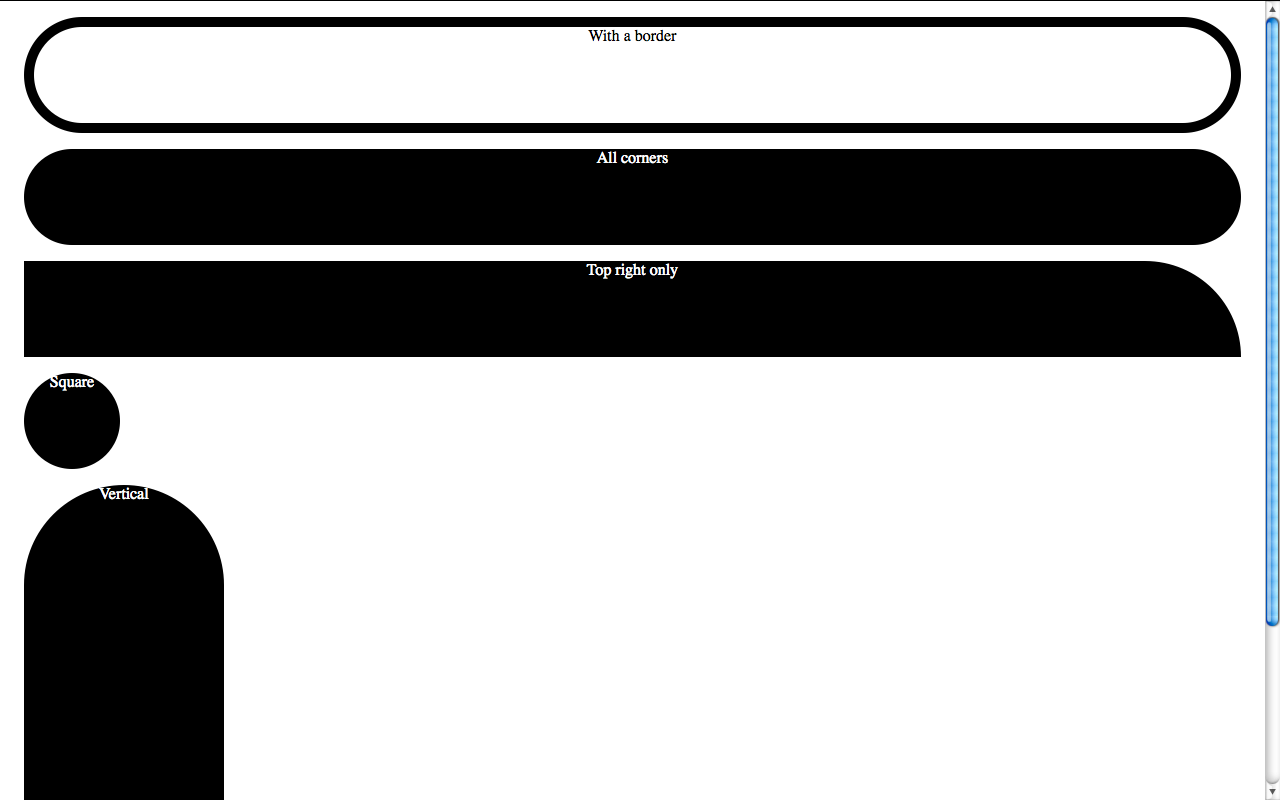
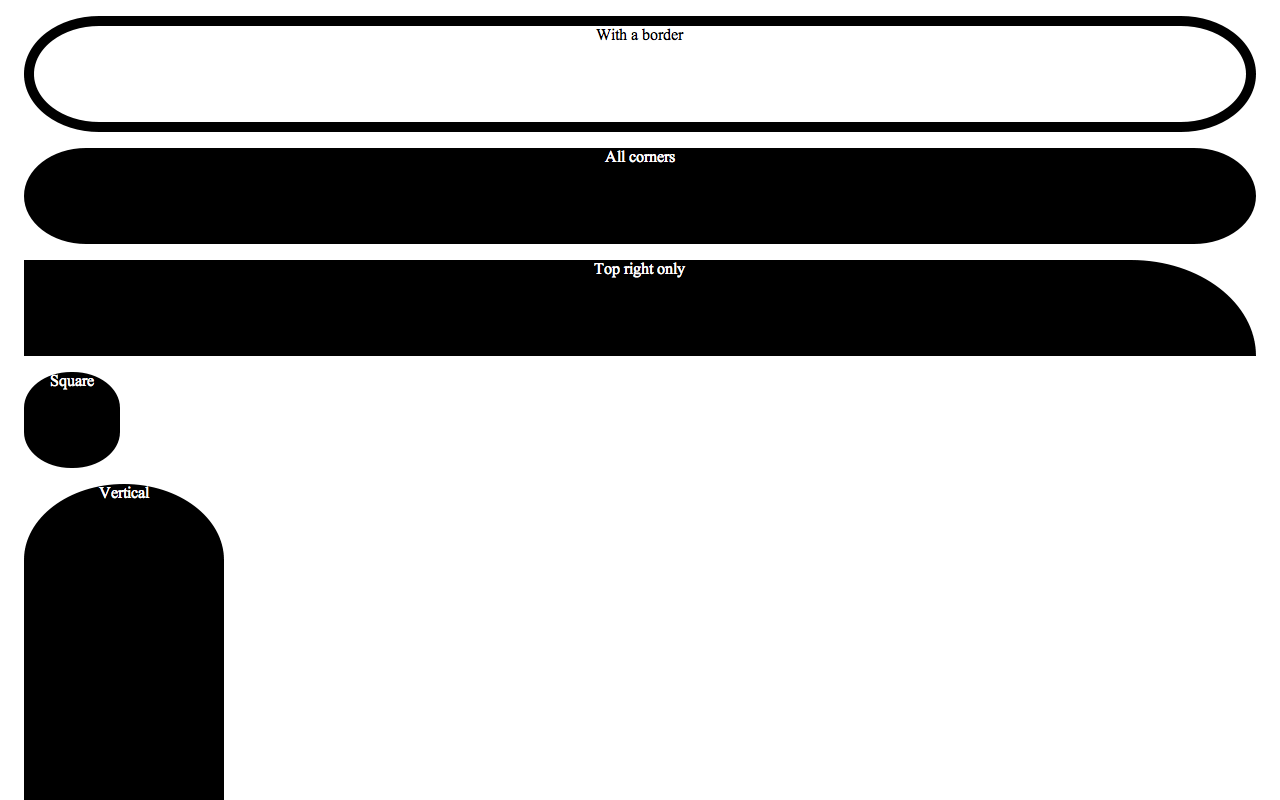
As I mentioned above, Gecko up to Firefox version 4 beta 6 always draws a regular curve for the corners with the largest radii applicable, resulting in a shape that is either a perfect circle or a rectangle with a semicircle on top and bottom (if height > width) or right and left (if width > height).
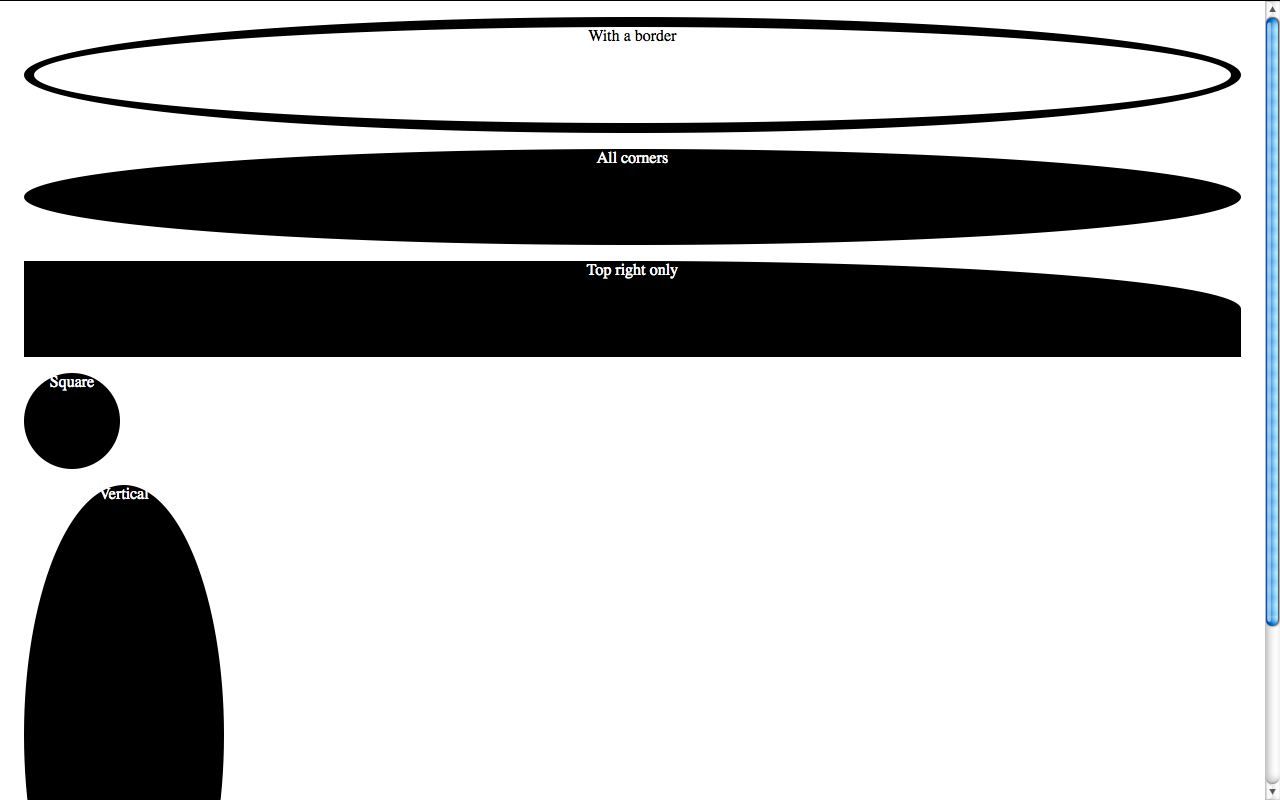
In the latest nightlies this bug is fixed, and it follows the spec to the letter. I can’t help but wonder if this was a bug, a misinterpretation of the spec or a deliberate disagreement with it.
Webkit was late to support percentages in border-radius, but it seems to be the first (it or IE9, I’m not sure) to follow the spec to the letter --concerning corner radii at least-- and renders an ellipse (horizontal radius = width/2, vertical radius = height/2) no matter what. Webkit however seems to be having serious trouble with borders, rendering them with variable width strokes (!).
Presto (Opera) is the weirdest when it comes to rendering a percentage border-radius. I can’t figure out the algorithm it uses to determine the radii of the corners even if it was to save my life, it even changes according to window size in my testcases! Since I’ve been using border-radius:50% regularly, I’ve had the pleasure of observing Opera’s rendering in many different designs and I still can’t find a pattern. It’s particularly funny when rendering the little fuchsia comment bubbles in the homepage of my blog: Every one of them has a different radius, even if they are about the same size. It even got one of them right and rendered it as an ellipse once!
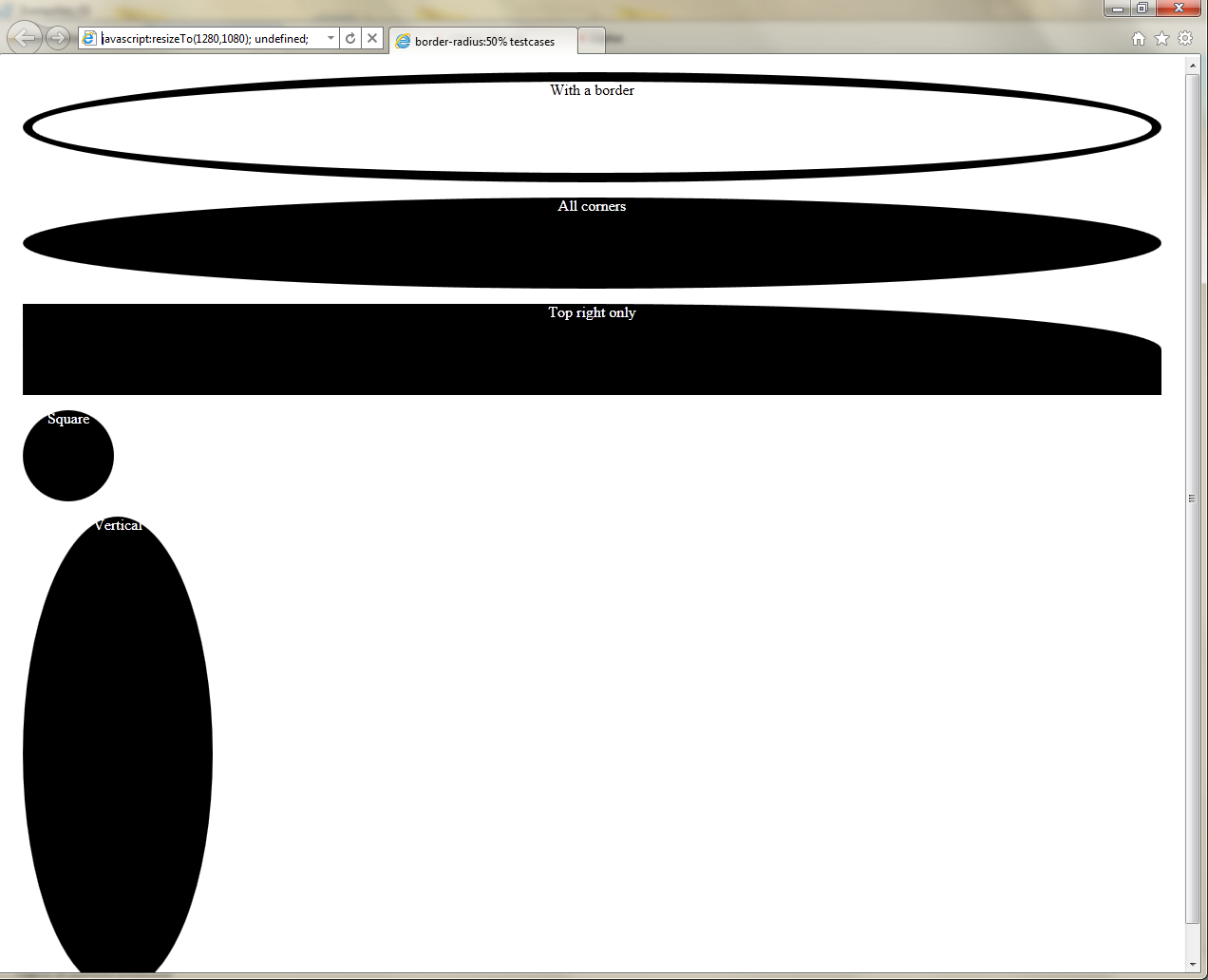
Trident (IE9), along with the latest Gecko nightly is the only 100% correct one when it comes to rendering the testcases, which is not surprising since the IE team boasted quite a lot for their bulletproof border-radius implementation. Well, their CSS3 support might be a bit lacking, but at least the bits they actually implement aren’t buggy. Kudos for that.
Note: Of course all bugs mentioned above have been reported to the respective browser vendors (except the Gecko one that is already fixed in the nightlies).