Reading List
The most recent articles from a list of feeds I subscribe to.
So, you’ve been invited to speak
I’ve been lucky enough to be invited to do about 25 talks over the course of the past few years and I have quite a few upcoming gigs as well, most of them at international conferences around Europe and the US. Despite my speaking experience, I’m still very reluctant to call myself a “professional speaker” or even a “speaker” at all. In case you follow me on twitter, you might have noticed that my bio says “Often pretends to be a speaker”, and that captures exactly how I feel. I’m not one of those confident performers that don’t just present interesting stuff, but also can blurt jokes one after the other, almost like stand-up comedians and never backtrack or go “ummm”. I greatly admire these people and I aspire to become as confident as them on stage one day. People like Aral Balkan, Christian Heilmann, Nicole Sullivan, Jake Archibald and many others. Unlike them, I often backtrack mid-sentence, say a lot of "ummmm"s and sometimes talk about stuff that was going to be later in my slides, all of which are very awkward.
However, I’ve reached the conclusion that I must be doing something right. I do get a lot of overwhelmingly positive feedback after almost every talk, even by people I admire in the industry. I don’t think I’ve ever gotten a negative comment for a talk, even in cases that I thought I had screwed up. Naturally, after all these conferences, I’ve attended a lot of technical talks myself, and I’ve gathered some insight on what constitutes a technical talk the audience will enjoy. I’ve been pondering to write a post with advice about this for a long time, but my lack of confidence about my speaking abilities put me off the task. However, since people seem to consider me good, I figured it might help others doing technical talks as well.
All of the following are rules of thumb. You have to keep in mind that there are exceptions to every single one, but it’s often quicker and more interesting to talk in absolutes. I will try to stay away from what’s already been said in other similar articles, such as “tell a story” or “be funny” etc, not because it’s bad advice, but because a) I’m not really good at those so I prefer to let others discuss them and b) I don’t like repeating stuff that’s already been said numerous times before. I will try to focus on what I do differently, and why I think it works. It might not fit your style and that’s ok. Audiences like a wide range of presentation styles, otherwise I’d be screwed, as I don’t fit the traditional “good speaker” profile. Also, it goes without saying that some of my advice might be flat out wrong. I’m just trying to do pattern recognition to figure out why people like my talks. That’s bound to be error-prone. My talks might be succeeding in spite of X and not because of it.
1. Do something unique
There are many nice talks with good minimal slides (almost everyone has read Presentation Zen by now), funny pictures, good content and confident presenters. In fact, they dominate almost every conference I’ve been at. You can always become a good speaker by playing it safe, and many famous speakers in the industry have earned their fame by doing so. There is absolutely nothing wrong with that. However, to stand out doing that kind of talk, you need to be really, really good. Hats off to the speakers that managed to stand out doing talks like that, because it means they are truly amazing.
However, if you, like me, fear that your speaking skills are not yet close to that caliber, you need to figure out something else that sets you apart. Something that will make your talk memorable. We see a lot of innovation in our discipline, but it’s limited to the scripts and apps we write. Why not to our presentations as well? Do something different, and make it your thing, your “trademark” way of presenting.
For me, that was the embedded demos in my slides. I usually have a small text field where I write code, and something (often the entire slide or text field itself) that displays the outcome. This lets the attendees see not just the end result, but also the intermediate states until we get there, which often proves out to be enlightening. It also makes the slide quite flexible, as I can always show something extra if I have the time.
Of course, it also means that things might (and if you talk often enough, will at some point) go wrong. To mitigate this to a degree, I try to keep demos small, with a sensible starting state, so that I won’t have to write a lot of code. Which brings us to the next point.
2. Never show a lot of code on a slide
I have a theory: Attendees’ understanding of code decreases exponentially as the lines of simultaneously displayed code increase. Avoid showing many lines of code at once like the plague. Although I’ve shown up to 10 lines of code on a single slide (maybe even more), I usually try to keep it well below five. Ideally less than three even. If you absolutely must present more code, try to use a technique to make the audience understand it by chunks, so that they still only have to process very little code at any given time.
One technique I use for that is showing little code at first, and writing the rest on stage, gradually, explaining the steps as I go. When that isn’t possible or it doesn’t make sense (for example when there is no visual result to see), I try to show parts of the code step by step, explaining what everything does as it appears. This doesn’t necessarily mean showing one line at a time. For example, if you are showing a JS function, it makes sense to show the closing brace at the same time as the opening brace and not at the end. Show the elements of the code in the order you would write them in a top-down implementation, not by pure source order (although in some cases those two may coincide). To make this more clear, here’s an example slide where I used this technique. It’s from my “Polyfilling the gaps” talk at JSConf EU 2011, one of the very few talks of mine that had no live coding.
Also, it goes without saying that if you have to present a lot of code at once, syntax highlighting is a must. Comments aren’t: That’s what you are there for. Comments just add visual clutter and make it harder for people to interpret the actual code. Also, while explaining the code, try to somehow highlight the part you’re currently describing, even if your method is as rudimentary as selecting the text. Otherwise, if someone misses a sentence, they will completely lose track.
3. IDEs are not good presentation tools
I’ve seen this so many times: Someone wants to live demo a technology and fires up their IDE or text editor and starts coding. The audience tries to follow along at first, but at some point almost always gets lost. While these tools are great for programming, they are not presentation tools. They have a lot of distracting clutter, very small text and require you to show parts of the code that aren’t really relevant. They also require you to switch applications to toggle between the code and result, which disrupts the flow of your presentation.
In addition, the probability you will make a mistake increases exponentially with the amount of code you write, both in real life and especially in presentations where you are also nervous. Then the audience is stuck with an embarrassed presenter trying to find what’s wrong for five minutes, until someone from the audience decides to put them out of their misery and shout that a closing parenthesis is missing on line 25.
That’s why live coding has gotten a bad reputation over the years.
As you’ve probably figured from tip #1, I’m not against live coding. Done well, it can really help the audience learn. However, if not done properly, it can end up completely wrecking a talk. Even if you absolutely have to use an external tool, try to make the experience as smooth as possible:
- Hide any toolbars, sidebars, panels. If your editor doesn’t allow you to hide everything that isn’t relevant, use another editor.
- Make the text BIG. If possible, as big as the text in your slides. Remember: Text in slides is big, because you need even the attendees sitting in the back rows to still be able to read it. Why is it that this simple consideration seems to escape so many presenter minds when they switch from slides to code?
- If parts of the code are needed but not relevant (e.g. CSS files in a JavaScript talk), put them in separate files and reference them. Try to minimize the code you will actually show as much as possible, and then even more.
- If applicable, use LiveReload and have the browser window and code editor side by side.
4. Don’t aim to beginners (only)
Some of the nastiest criticism I’ve seen against people’s talks was that they were too elementary. Getting feedback like that has almost become a phobia of mine. Of course, it’s always better if your entire audience is at the same level, and you are fully aware what that level is. However, that’s almost never the case, so you will have to err on one side. Do your best to cater to the median, but when you have to err, err on the side of more advanced content. A somewhat selfish reason would be that when people find your talk too elementary, they will blame you; when they find it too advanced, they will blame themselves. However, it’s not just covering your ass, it’s better for your audience as well. Someone who didn’t learn anything new gets absolutely nothing out of your talk (unless it’s an interesting performance on its own, e.g. so funny it could have been stand up comedy for geeks). A person that learned many things but didn’t understand some of the more advanced concepts will still have gotten a lot out of it.
If someone learns a useful thing or two from your talk, that’s what they’ll remember. Even if the rest of the talk was elementary or too advanced for them, they will walk out with a positive impression, thinking “I learned something today!”. Even if most of your talk is elementary, try to sneak in some more advanced or obscure bits, that not many people know.
My favorite approach to cater for a diverse audience with very different levels of experience, is to pick a narrow topic, start from the very basics and work my way up to more advanced concepts. This way everyone learns something, and nobody feels intimidated. On the flip side, if you are in a multi-track conference, this also limits the potential audience that might come to your talk.
5. Eat your own dog food
I’m a huge fan of HTML-based (or SVG-based) slideshows. I’ve always been, since my first talk. It’s a technology you’re already accustomed to, so you can do amazing things with it. You can write scripts that demonstrate the concepts you describe in some visual way, you can do live demos, you can embed iframes of other people’s demos, you know how to style it much better than you likely know how to use Keynote. Yes, if you’re used to traditional presentation tools, it might be hard at first. Many features you’ve been taking for granted will be missing. Styling is not visual, there are no presenter notes, no next slide preview, no automatic adjustment to the projector resolution to name a few. But what you gain in potential and expressiveness, are totally worth the trade-off. Also, rather than having the talk prep keep you from writing code and becoming better at what you do, it will now actually contribute to it! It’s also a great chance to try experimental stuff, as it’s going to be run in a very controlled environment.
You don’t even need to write your own presentation framework if you don’t want to. There are a ton available now, such as my own CSSS, impress.js and many others.
6. Involve the audience
There is an old Chinese proverb that goes like:
Tell me, and I’ll forget Show me, and I’ll remember Involve me, and I’ll understand
I’ve noticed that audiences respond extremely well to talks that attempt to involve them. Seb-Lee Delisle gave a talk at Fronteers 2011 where he involved the audience by ideas like demonstrating Web Sockets through making their iPhones flash in such a way that he could create light patterns with the audience. Even though some of the demos failed (I think something crashed, don’t remember very well), the audience loved every bit. I’ve rarely seen people that excited about a talk.
Involving the audience was something I wanted to do for a while. In my recent Regular Expressions talks, I had a series of small “challenges” where the audience tried to write a regexp to match a certain set of strings as quickly as possible and tweet it. I provided a link to an app I made especially for that. The person who got most regexes right (or more right than others) won a book. This was also very well received and lots of positive feedback mentioned it. When it feels like a game, learning is much more fun.
Why I bought a high-end MacBook Air instead of the Retina MBP
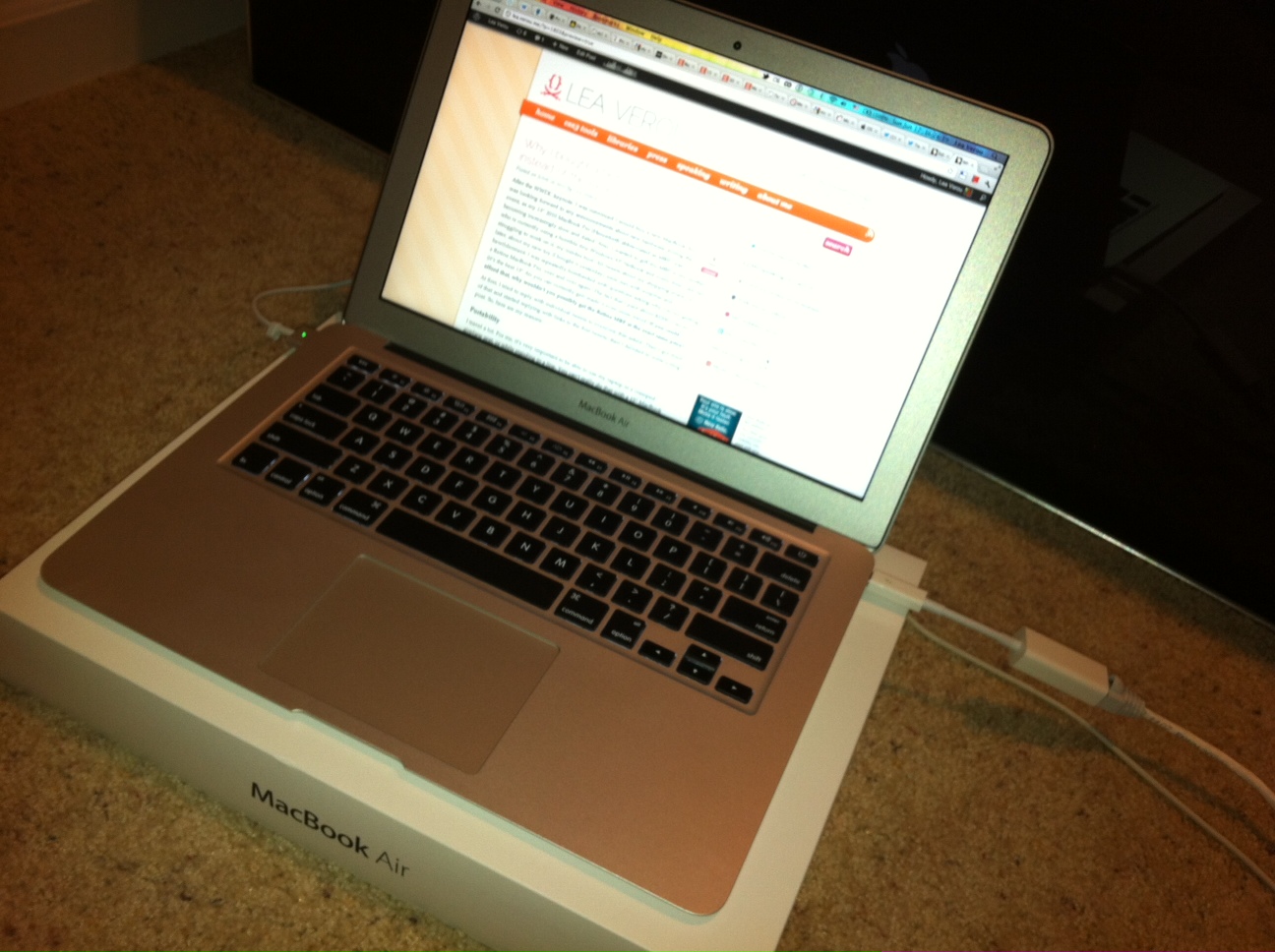 After the WWDC keynote, I was convinced I would buy a new MacBook Air. I was looking forward to any announcements about new hardware during the event, as my 13" 2010 MacBook Pro (Henceforth abbreviated as MBP) was becoming increasingly slow and dated. Also, I wanted to gift my MBP to my mother, who is currently using a horrible tiny Windows XP Netbook and every time I see her struggling to work on it, my insides hurt. All tweets about my shopping plans, or, later, about my new toy (I bought it yesterday) were met with surprise and bewilderment: I was repeatedly bombarded with questions asking why I’m not getting a Retina MacBook Pro, over and over again. The fact that I paid about $2200 + tax for it (it’s the best 13" Air you can currently get) made it even more weird: If you could afford that, why wouldn’t you possibly get the Retina MBP at the exact same price?
At first, I tried to reply with individual tweets to everyone that asked. Then I got tired of that and started replying with links to the first tweets, then I decided to write a blog post. So, here are my reasons:
Portability
I travel a lot. For me, it’s very important to be able to use my laptop in a cramped airplane seat, or while standing in a line. You can’t really do that with a 15" MacBook Pro, even with the new slimmer design. I wanted to be able to quickly pull it out of my tote bag with one hand, hold it with said hand and quickly look up something with the other hand. Usage scenarios of that sort are just unthinkable for big laptops. Of course, portability is not the only thing that matters, as I only use one laptop as my main work machine. Having two machines, one for portability and one for “real work”, always seemed to me like more hassle than it’s worth. So, a 11" MacBook Air was also out of the question. Which brings us to the middle ground of a 13" laptop. All my laptops had always been around 13". It’s a perfect trade-off between power and portability and I don’t wish to change that any time soon. It was quite simple: The 13" Air is more portable than my MBP. The 15" Retina MBP was less portable. I needed more portability than I had, not less.
I saw the Retina MBP and wasn’t too impressed
When I first went to the Apple Store to buy the MacBook Air, I saw the new Retina display. I even managed to use it a bit, despite the swarm of fellow geeks nerdgasming uncontrollably around it. I won’t lie: I was tempted at first. The display is very crisp indeed, although the difference between icons that were not updated for the Retina is quite obvious, especially next to their accompanying text (which is always crisp, since text is vector-based). I started being unsure about my decision, as Nicole Sullivan can attest (she was with me). And then it dawned on me: Hey, I should see the MacBook I was planning to buy in person too. Maybe its screen is also quite crisp. Maybe the difference won’t even be that noticeable. I was right: My simple, untrained eyes could not really tell the difference. MacBook Airs have a decently crisp screen. Of course, if you put them next to each other, I’d imagine the difference would be fairly obvious. But who does that?
However, my impression still wasn’t sufficient to make a decision. I’ve learned not to trust my unreliable human senses too much. I needed numbers. Calculating the actual DPI of a monitor is actually fairly simple: All you need is the Pythagorean theorem you learned in school, to calculate the hypotenuse of the screen in pixels, and then divide that number by the length of the diagonal in inches. The result will be the number of pixels per inch, commonly (and slightly incorrectly) referred to as DPI (PPI is more correct). If you know basic JavaScript, you don’t even need a calculator, just your ol’ trusty console.
I even wrote a handy function that does it for me:
function dpi(w,h,inches) { return Math.round(Math.sqrt(w*w + h*h)/inches) }
For the 13" MacBook Air, the DPI is:
> dpi(1440, 900, 13.3) 128
For the Retina MBP, it’s:
> dpi(2880, 1800, 15.4) 221
220 DPI is certainly higher than 130, but it’s not the kind of eyegasm-inducing difference I experienced when I moved from an iPhone 3G to an iPhone 4 (the difference there was 163 DPI vs 326 DPI).
I don’t want to distance myself too much from the average web user
It happens more than we like to admit: We get cool new hardware, and eventually we’re carried away and think most web users are close to our level. We start designing for bigger and bigger resolutions, because it’s hard to imagine that some people are still on 1024x768. We code to better CPUs, because it’s hard to imagine how crappy computers many of our target users have. We don’t care about bandwidth and battery, because they aren’t a concern for most of us. Some of us will realize before launching, during a very painful testing session, some others will only realize after the complaints start pouring in. It’s the same reason a website always looks and works better in the browser its developers use, even though almost always it gets tested in many others.
We like to think we’re better than that, that we always test, that we never get carried away, but in most cases we are lying to ourselves. So, even though I recognize that I probably have much better hardware than most web users, I consciously try to avoid huge resolutions as I know I’ll get carried away. I try to keep myself as close to the average user as I can tolerate. Using IE9 on a 1024x768 resolution would be over that threshold, but not using a Retina display is easily tolerable.
That’s all folks
Hope this makes sense. Hopefully, it might help others trying to decide between the two. I sure am very happy so far with my new Air :)
Why I bought a high-end MacBook Air instead of the Retina MBP
After the WWDC keynote, I was convinced I would buy a new MacBook Air. I was looking forward to any announcements about new hardware during the event, as my 13" 2010 MacBook Pro (Henceforth abbreviated as MBP) was becoming increasingly slow and dated. Also, I wanted to gift my MBP to my mother, who is currently using a horrible tiny Windows XP Netbook and every time I see her struggling to work on it, my insides hurt. All tweets about my shopping plans, or, later, about my new toy (I bought it yesterday) were met with surprise and bewilderment: I was repeatedly bombarded with questions asking why I’m not getting a Retina MacBook Pro, over and over again. The fact that I paid about $2200 + tax for it (it’s the best 13" Air you can currently get) made it even more weird: If you could afford that, why wouldn’t you possibly get the Retina MBP at the exact same price?
At first, I tried to reply with individual tweets to everyone that asked. Then I got tired of that and started replying with links to the first tweets, then I decided to write a blog post. So, here are my reasons:
Portability
I travel a lot. For me, it’s very important to be able to use my laptop in a cramped airplane seat, or while standing in a line. You can’t really do that with a 15" MacBook Pro, even with the new slimmer design. I wanted to be able to quickly pull it out of my tote bag with one hand, hold it with said hand and quickly look up something with the other hand. Usage scenarios of that sort are just unthinkable for big laptops. Of course, portability is not the only thing that matters, as I only use one laptop as my main work machine. Having two machines, one for portability and one for “real work”, always seemed to me like more hassle than it’s worth. So, a 11" MacBook Air was also out of the question. Which brings us to the middle ground of a 13" laptop. All my laptops had always been around 13". It’s a perfect trade-off between power and portability and I don’t wish to change that any time soon. It was quite simple: The 13" Air is more portable than my MBP. The 15" Retina MBP was less portable. I needed more portability than I had, not less.
I saw the Retina MBP and wasn’t too impressed
When I first went to the Apple Store to buy the MacBook Air, I saw the new Retina display. I even managed to use it a bit, despite the swarm of fellow geeks nerdgasming uncontrollably around it. I won’t lie: I was tempted at first. The display is very crisp indeed, although the difference between icons that were not updated for the Retina is quite obvious, especially next to their accompanying text (which is always crisp, since text is vector-based). I started being unsure about my decision, as Nicole Sullivan can attest (she was with me). And then it dawned on me: Hey, I should see the MacBook I was planning to buy in person too. Maybe its screen is also quite crisp. Maybe the difference won’t even be that noticeable. I was right: My simple, untrained eyes could not really tell the difference. MacBook Airs have a decently crisp screen. Of course, if you put them next to each other, I’d imagine the difference would be fairly obvious. But who does that?
However, my impression still wasn’t sufficient to make a decision. I’ve learned not to trust my unreliable human senses too much. I needed numbers. Calculating the actual DPI of a monitor is actually fairly simple: All you need is the Pythagorean theorem you learned in school, to calculate the hypotenuse of the screen in pixels, and then divide that number by the length of the diagonal in inches. The result will be the number of pixels per inch, commonly (and slightly incorrectly) referred to as DPI (PPI is more correct). If you know basic JavaScript, you don’t even need a calculator, just your ol’ trusty console.
I even wrote a handy function that does it for me:
function dpi(w,h,inches) { return Math.round(Math.sqrt(w*w + h*h)/inches) }
For the 13" MacBook Air, the DPI is:
> dpi(1440, 900, 13.3) 128
For the Retina MBP, it’s:
> dpi(2880, 1800, 15.4) 221
220 DPI is certainly higher than 130, but it’s not the kind of eyegasm-inducing difference I experienced when I moved from an iPhone 3G to an iPhone 4 (the difference there was 163 DPI vs 326 DPI).
I don’t want to distance myself too much from the average web user
It happens more than we like to admit: We get cool new hardware, and eventually we’re carried away and think most web users are close to our level. We start designing for bigger and bigger resolutions, because it’s hard to imagine that some people are still on 1024x768. We code to better CPUs, because it’s hard to imagine how crappy computers many of our target users have. We don’t care about bandwidth and battery, because they aren’t a concern for most of us. Some of us will realize before launching, during a very painful testing session, some others will only realize after the complaints start pouring in. It’s the same reason a website always looks and works better in the browser its developers use, even though almost always it gets tested in many others.
We like to think we’re better than that, that we always test, that we never get carried away, but in most cases we are lying to ourselves. So, even though I recognize that I probably have much better hardware than most web users, I consciously try to avoid huge resolutions as I know I’ll get carried away. I try to keep myself as close to the average user as I can tolerate. Using IE9 on a 1024x768 resolution would be over that threshold, but not using a Retina display is easily tolerable.
That’s all folks
Hope this makes sense. Hopefully, it might help others trying to decide between the two. I sure am very happy so far with my new Air :)
Hacking lookahead to mimic intersection, subtraction and negation
Note: To understand the following, I expect you to know how regex lookahead works. If you don’t, read about it first and return here after you’re done.
I was quite excited to discover this, but to my dismay, Steven Levithan assured me it’s actually well known. However, I felt it’s so useful and underdocumented (the only references to the technique I could find was several StackOverflow replies) that I decided to blog about it anyway.
If you’ve been using regular expressions for a while, you surely have stumbled on a variation of the following problems:
- Intersection: “I want to match something that matches pattern A AND pattern B” Example: A password of at least 6 characters that contains at least one digit, at least one letter and at least one symbol
- Subtraction: “I want to match something that matches pattern A but NOT pattern B” Example: Match any integer that is not divisible by 50
- Negation: “I want to match anything that does NOT match pattern A” Example: Match anything that does NOT contain the string “foo”
Even though in ECMAScript we can use the caret (^) to negate a character class, we cannot negate anything else. Furthermore, even though we have the pipe character to mean OR, we have nothing that means AND. And of course, we have nothing that means “except” (subtraction). All these are fairly easy to do for single characters, through character classes, but not for entire sequences.
However, we can mimic all three operations by taking advantage of the fact that lookahead is zero length and therefore does not advance the matching position. We can just keep on matching to our heart’s content after it, and it will be matched against the same substring, since the lookahead itself consumed no characters. For a simple example, the regex /^(?!cat)\w{3}$/ will match any 3 letter word that is NOT “cat”. This was a very simple example of subtraction. Similarly, the solution to the subtraction problem above would look like /^(?!\d+[50]0)\d+$/.
For intersection (AND), we can just chain multiple positive lookaheads, and put the last pattern as the one that actually captures (if everything is within a lookahead, you’ll still get the same boolean result, but not the right matches). For example, the solution to the password problem above would look like /^(?=.*\d)(?=.*[a-z])(?=.*[\W_]).{6,}$/i. Note that if you want to support IE8, you have to take this bug into account and modify the pattern accordingly.
Negation is the simplest: We just want a negative lookahead and a .+ to match anything (as long as it passes the lookahead test). For example, the solution to the negation problem above would look like /^(?!.*foo).+$/. Admittedly, negation is also the least useful on its own.
There are caveats to this technique, usually related to what actually matches in the end (make sure your actual capturing pattern, outside the lookaheads, captures the entire thing you’re interested in!), but it’s fairly simple for just testing whether something matches.
Steven Levithan took lookahead hacking to the next level, by using something similar to mimic conditionals and atomic groups. Mind = blown.
Hacking lookahead to mimic intersection, subtraction and negation
Note: To understand the following, I expect you to know how regex lookahead works. If you don’t, read about it first and return here after you’re done.
I was quite excited to discover this, but to my dismay, Steven Levithan assured me it’s actually well known. However, I felt it’s so useful and underdocumented (the only references to the technique I could find was several StackOverflow replies) that I decided to blog about it anyway.
If you’ve been using regular expressions for a while, you surely have stumbled on a variation of the following problems:
- Intersection: “I want to match something that matches pattern A AND pattern B” Example: A password of at least 6 characters that contains at least one digit, at least one letter and at least one symbol
- Subtraction: “I want to match something that matches pattern A but NOT pattern B” Example: Match any integer that is not divisible by 50
- Negation: “I want to match anything that does NOT match pattern A” Example: Match anything that does NOT contain the string “foo”
Even though in ECMAScript we can use the caret (^) to negate a character class, we cannot negate anything else. Furthermore, even though we have the pipe character to mean OR, we have nothing that means AND. And of course, we have nothing that means “except” (subtraction). All these are fairly easy to do for single characters, through character classes, but not for entire sequences.
However, we can mimic all three operations by taking advantage of the fact that lookahead is zero length and therefore does not advance the matching position. We can just keep on matching to our heart’s content after it, and it will be matched against the same substring, since the lookahead itself consumed no characters. For a simple example, the regex /^(?!cat)\w{3}$/ will match any 3 letter word that is NOT “cat”. This was a very simple example of subtraction. Similarly, the solution to the subtraction problem above would look like /^(?!\d+[50]0)\d+$/.
For intersection (AND), we can just chain multiple positive lookaheads, and put the last pattern as the one that actually captures (if everything is within a lookahead, you’ll still get the same boolean result, but not the right matches). For example, the solution to the password problem above would look like /^(?=.*\d)(?=.*[a-z])(?=.*[\W_]).{6,}$/i. Note that if you want to support IE8, you have to take this bug into account and modify the pattern accordingly.
Negation is the simplest: We just want a negative lookahead and a .+ to match anything (as long as it passes the lookahead test). For example, the solution to the negation problem above would look like /^(?!.*foo).+$/. Admittedly, negation is also the least useful on its own.
There are caveats to this technique, usually related to what actually matches in the end (make sure your actual capturing pattern, outside the lookaheads, captures the entire thing you’re interested in!), but it’s fairly simple for just testing whether something matches.
Steven Levithan took lookahead hacking to the next level, by using something similar to mimic conditionals and atomic groups. Mind = blown.