Reading List
The most recent articles from a list of feeds I subscribe to.
Never forget type="button" on generated buttons!
 I just dealt with one of the weirdest bugs and thought you may find it amusing too.
In one of my slides for my upcoming talk “Even More CSS Secrets”, I had a Mavo app on a <form>, and the app included a collection to quickly create a UI to manage pairs of values for something I wanted to calculate in one of my live demos. A Mavo collection is a repeatable HTML element with affordances to add items, delete items, move items etc. Many of these affordances are implemented via <button> elements generated by Mavo.
Normally, hitting Enter inside a text field within a collection adds a new item, as one would expect. However, I noticed that when I hit Enter inside any item, not only no item was added, but an item was being deleted, with the usual “Item deleted [Undo]” UI and everything!
At first I thought it was a bug with the part of Mavo code that adds items on Enter and deletes empty items on backspace, so I commented that out. Nope, still happening. I was already very puzzled, since I couldn’t remember any other part of the codebase that deletes items in response to keyboard events.
So, I added breakpoints on the delete(item) method of Mavo.Collection to inspect the call stack and see how execution got there. Turned out, it got there via a normal …click event on the actual delete button! What fresh hell was this? I never clicked any delete button!
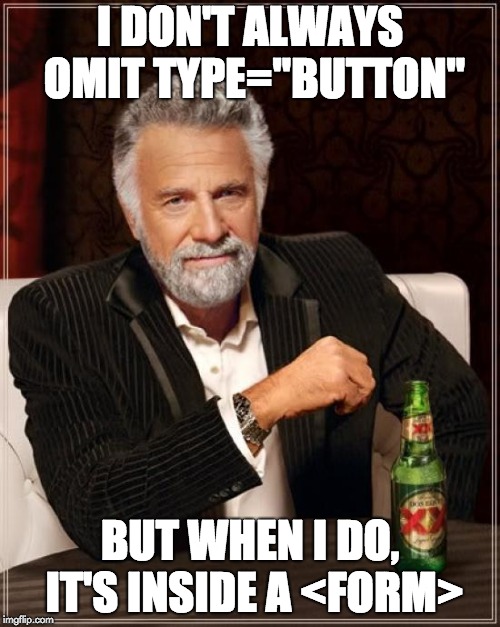
And then it dawned on me: <button> elements with no type attribute set are submit buttons by default! Quote from spec: The missing value default and invalid value default are the Submit Button state.. This makes no difference in most cases, UNLESS you’re inside a form. The delete button of the first item had been turned into the de facto default submit button just because it was the first button in that form and it had no type!
I also remembered that regardless of how you submit a form (e.g. by hitting Enter on a single-line text field) it also fires a click event on the default submit button, because people often listen to that instead of the form’s submit event. Ironically, I was cancelling the form’s submit event in my code, but it still generated that fake click event, making it even harder to track down as no form submission was actually happening.
The solution was of course to go through every part of the Mavo code that generates buttons and add type=“button” to them. I would recommend this to everyone who is writing libraries that will operate in unfamiliar HTML code. Most of the time a type-less <button> will work just fine, but when it doesn’t, things get really weird.
Responsive tables, revisited
Responsive tables, revisited
Responsive tables, revisited
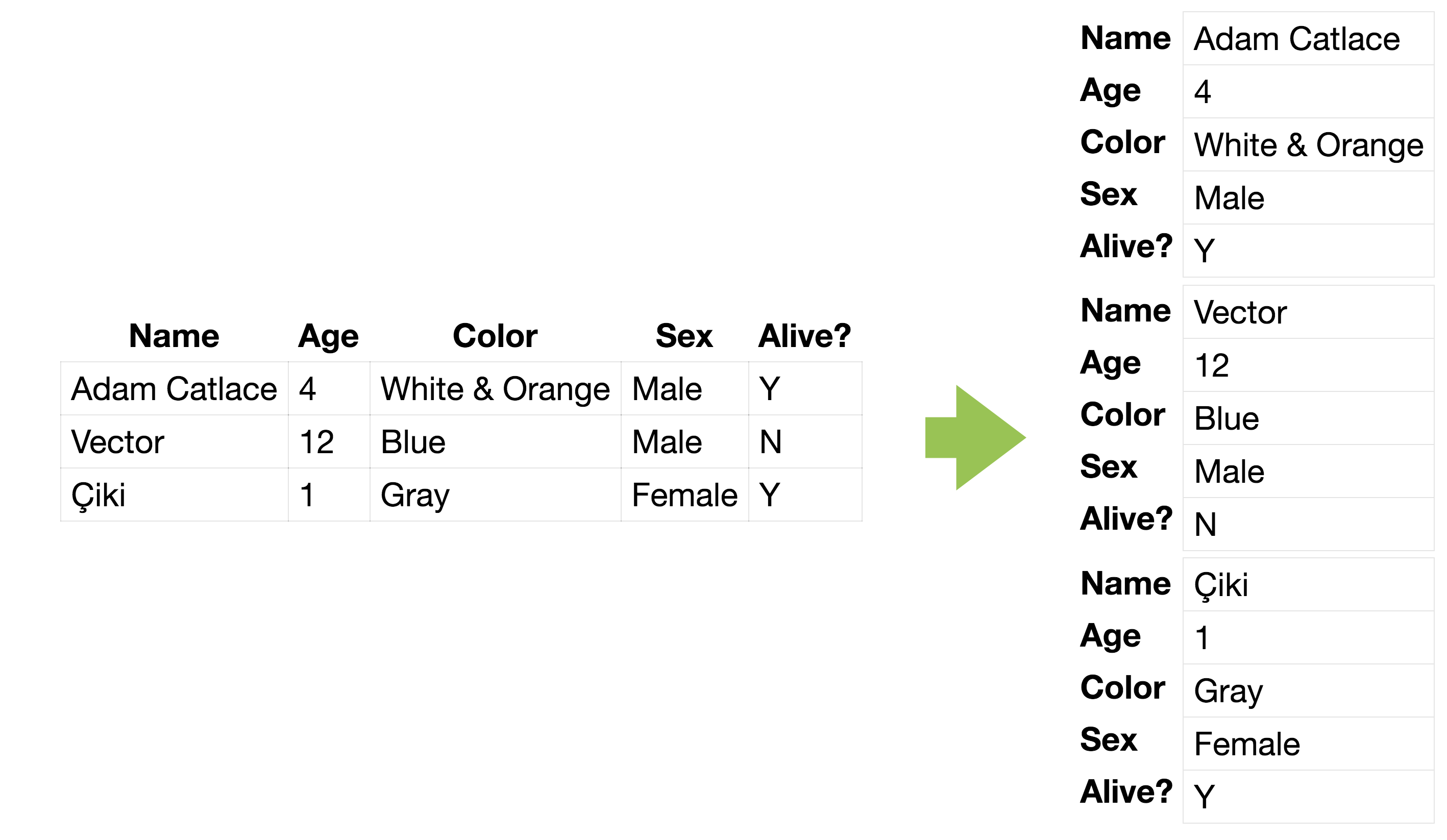
Many people have explored responsive tables. The usual idea is turning the table into key-value pairs so that cells become rows and there are only 2 columns total, which fit in any screen. However, this means table headers need to now be repeated for every row. The current ways to do that are:
- Duplicating content in CSS or via a data-* attribute, using generated content to insert it before every row.
- Using a definition list which naturally has duplicated
<dt>s, displaying it as a table in larger screens.
A few techniques that go in an entirely different direction are:
- Hiding non-essential columns in smaller screens
- Showing a thumbnail of the table instead, and display the full table on click
- Displaying a graph in smaller screens (e.g. a pie chart)
I think the key-value display is probably best because it works for any kind of table, and provides the same information. So I wondered, is there any way to create it without duplicating content either in the markup or in the CSS? After a bit of thinking, I came up with two ways, each with their own pros and cons.
Both techniques are very similar: They set table elements to display: block; so that they behave like normal elements and duplicate the <thead> contents in two different ways:
- Using text-shadow and creating one shadow for each row
- Using the element() function to duplicate the entire thead, styles and all.
Each method has its own pros and cons, but the following pros and cons apply to both:
- Pros: Works with normal table markup
- Cons:
- All but the first set of headers are unselectable (since neither shadows nor element()-generated images are real text). However, keep in mind that the techniques based on generated content also have this problem — and for all rows. Also, that the markup screen readers see is the same as a normal table. However, it’s still a pretty serious flaw and makes this a hack. I’m looking forward to seeing more viable solutions.
- Only works if none of the table cells wrap, since it depends on table cells being aligned with their headers.
Using text-shadow to copy text to other rows
- Additional Pros: Works in every browser
- Additional Cons: Max Number of rows needs to be hardcoded in the CSS, since each row needs another text shadow on
<thead>. However, you can specify more shadows than needed, since overflow: hidden on the table prevents extra ones from showing up. Also, number of columns needs to be specified in the CSS (the--colsvariable).
Using element() to copy the entire <thead> to other rows
- Additional Cons:
element()is currently only supported in Firefox :(
Responsive tables, revisited
Many people have explored responsive tables. The usual idea is turning the table into key-value pairs so that cells become rows and there are only 2 columns total, which fit in any screen. However, this means table headers need to now be repeated for every row. The current ways to do that are:
- Duplicating content in CSS or via a data-* attribute, using generated content to insert it before every row.
- Using a definition list which naturally has duplicated
<dt>s, displaying it as a table in larger screens.
A few techniques that go in an entirely different direction are:
- Hiding non-essential columns in smaller screens
- Showing a thumbnail of the table instead, and display the full table on click
- Displaying a graph in smaller screens (e.g. a pie chart)
I think the key-value display is probably best because it works for any kind of table, and provides the same information. So I wondered, is there any way to create it without duplicating content either in the markup or in the CSS? After a bit of thinking, I came up with two ways, each with their own pros and cons.
Both techniques are very similar: They set table elements to display: block; so that they behave like normal elements and duplicate the <thead> contents in two different ways:
- Using text-shadow and creating one shadow for each row
- Using the element() function to duplicate the entire thead, styles and all.
Each method has its own pros and cons, but the following pros and cons apply to both:
- Pros: Works with normal table markup
- Cons:
- All but the first set of headers are unselectable (since neither shadows nor element()-generated images are real text). However, keep in mind that the techniques based on generated content also have this problem — and for all rows. Also, that the markup screen readers see is the same as a normal table. However, it’s still a pretty serious flaw and makes this a hack. I’m looking forward to seeing more viable solutions.
- Only works if none of the table cells wrap, since it depends on table cells being aligned with their headers.
Using text-shadow to copy text to other rows
- Additional Pros: Works in every browser
- Additional Cons: Max Number of rows needs to be hardcoded in the CSS, since each row needs another text shadow on
<thead>. However, you can specify more shadows than needed, since overflow: hidden on the table prevents extra ones from showing up. Also, number of columns needs to be specified in the CSS (the--colsvariable).
Using element() to copy the entire <thead> to other rows
- Additional Cons:
element()is currently only supported in Firefox :(