Reading List
The most recent articles from a list of feeds I subscribe to.
macOS settings I always customize
When I set up a new Mac, there are a few things that make it immediately feel “off” to me. These are the small System Preferences tweaks I make that my muscle memory relies on.
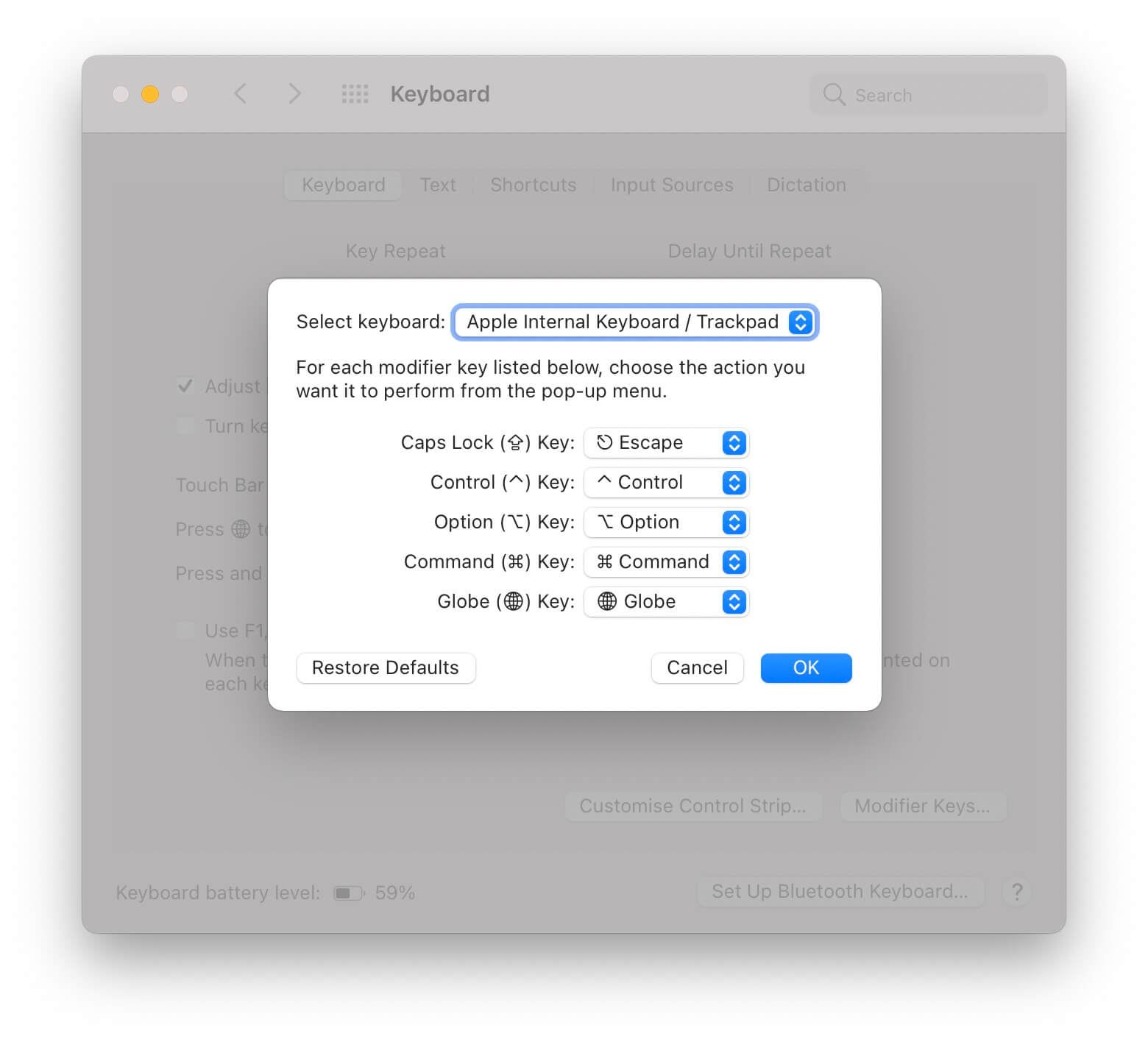
Remap Caps Lock to Escape
I have an (irrational?) hate for the Caps Lock key. It’s big. You bump it. And you barely need it. On the other hand, I often need the Escape key, but it’s hard to reach. Remapping Caps Lock to Escape feeds two birds with one scone.
You can remap Caps Lock in System Preferences > Keyboard > Modifier Keys. This setting is keyboard-specific. I use an external keyboard on my desk, so I need to set this up twice.
Three finger drag
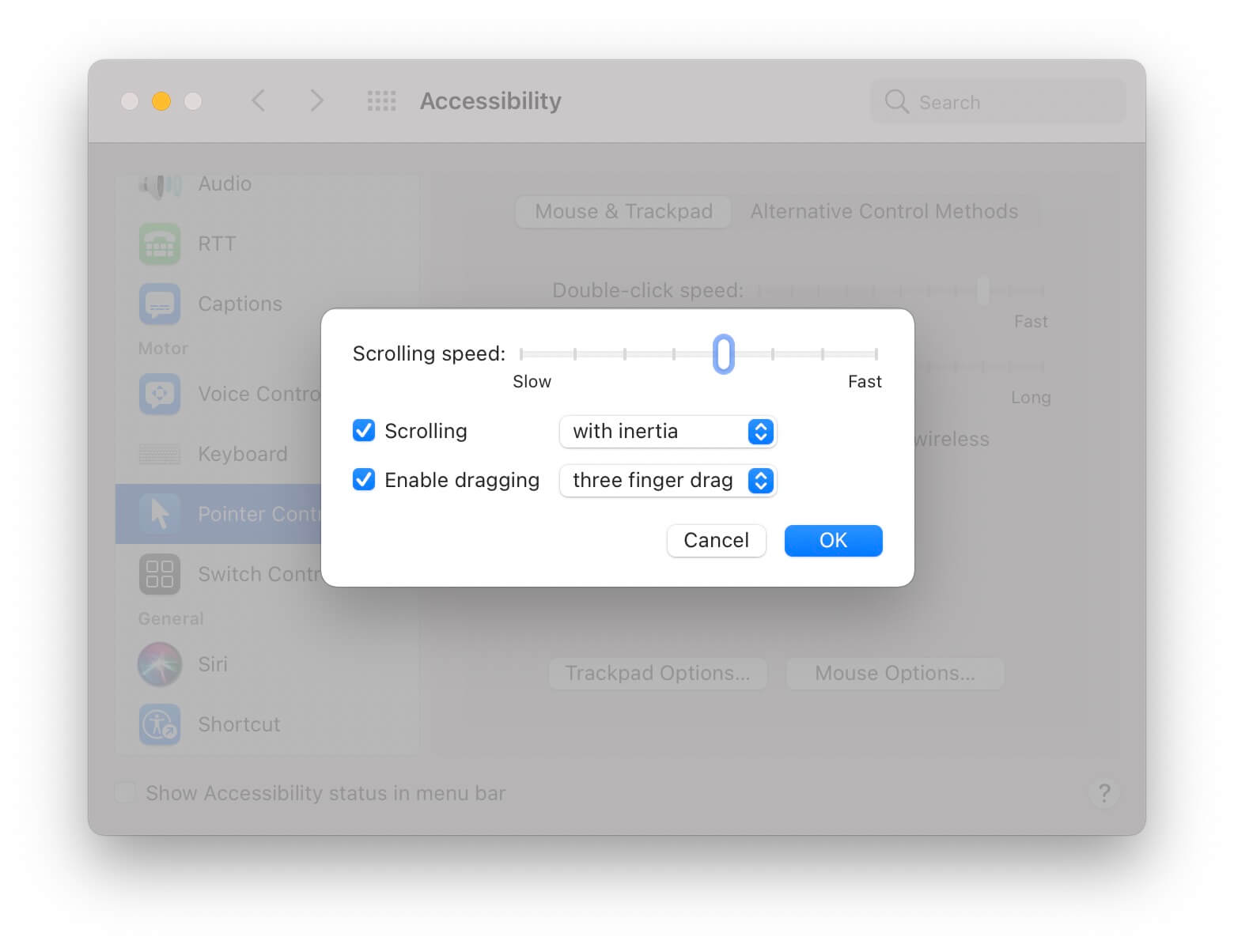
I’m a full-time trackpad user. However, I always found the force you need to apply to drag awkward. Three finger drag allows you to “grab” something by placing three fingers on your trackpad and moving them around.
This setting is a bit hard to find in System Preferences > Accessibility > Pointer Control > Trackpad Options… > Enable dragging three finger drag.
Fast tracking
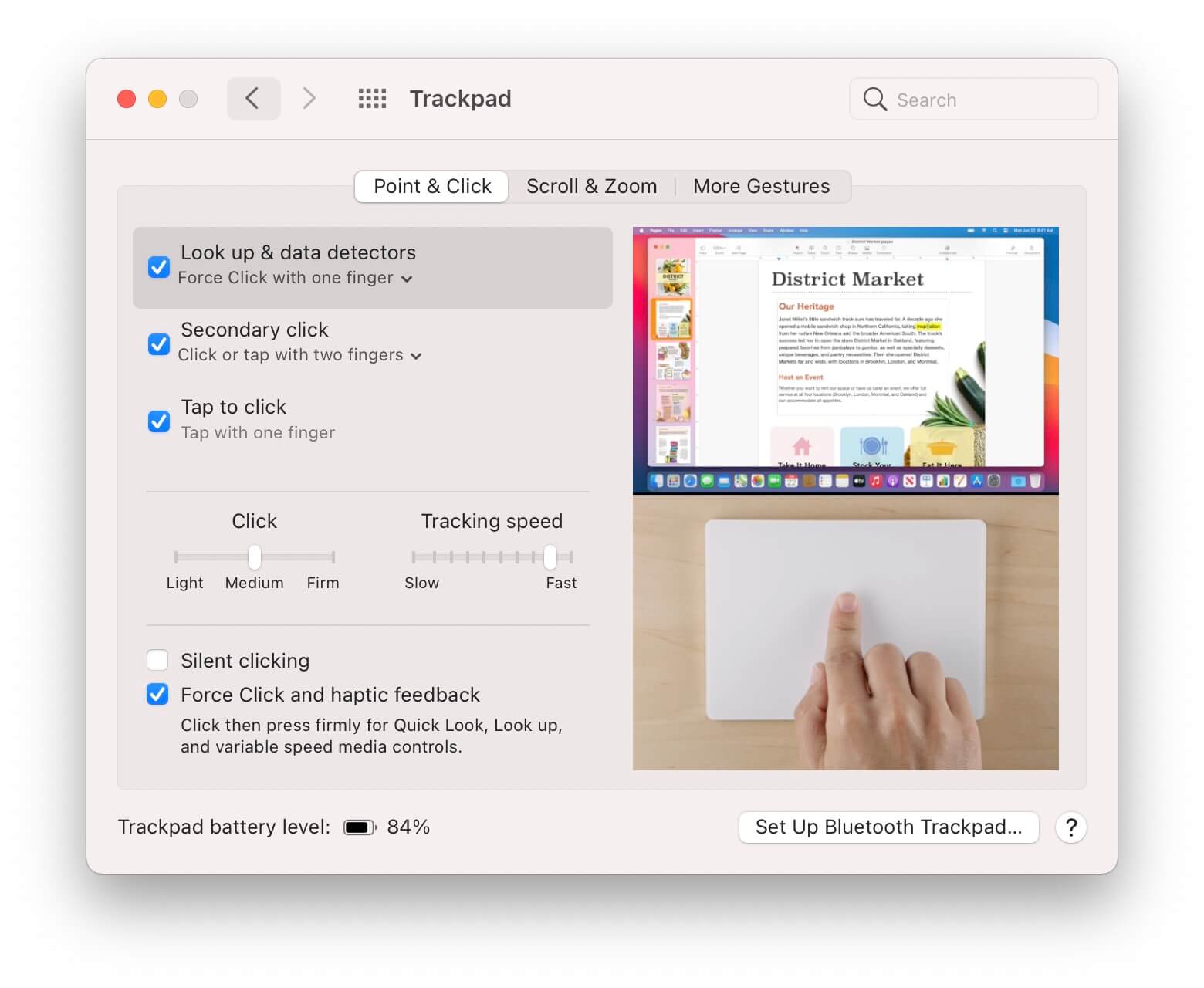
I have my tracking speed almost at the fastest setting. This takes a day to get used to, but once you do every other machine feels slow.
Tracking speed can be set in System Preferences > Trackpad > Point & Click > Tracking speed.
Fast key repeat with a low delay
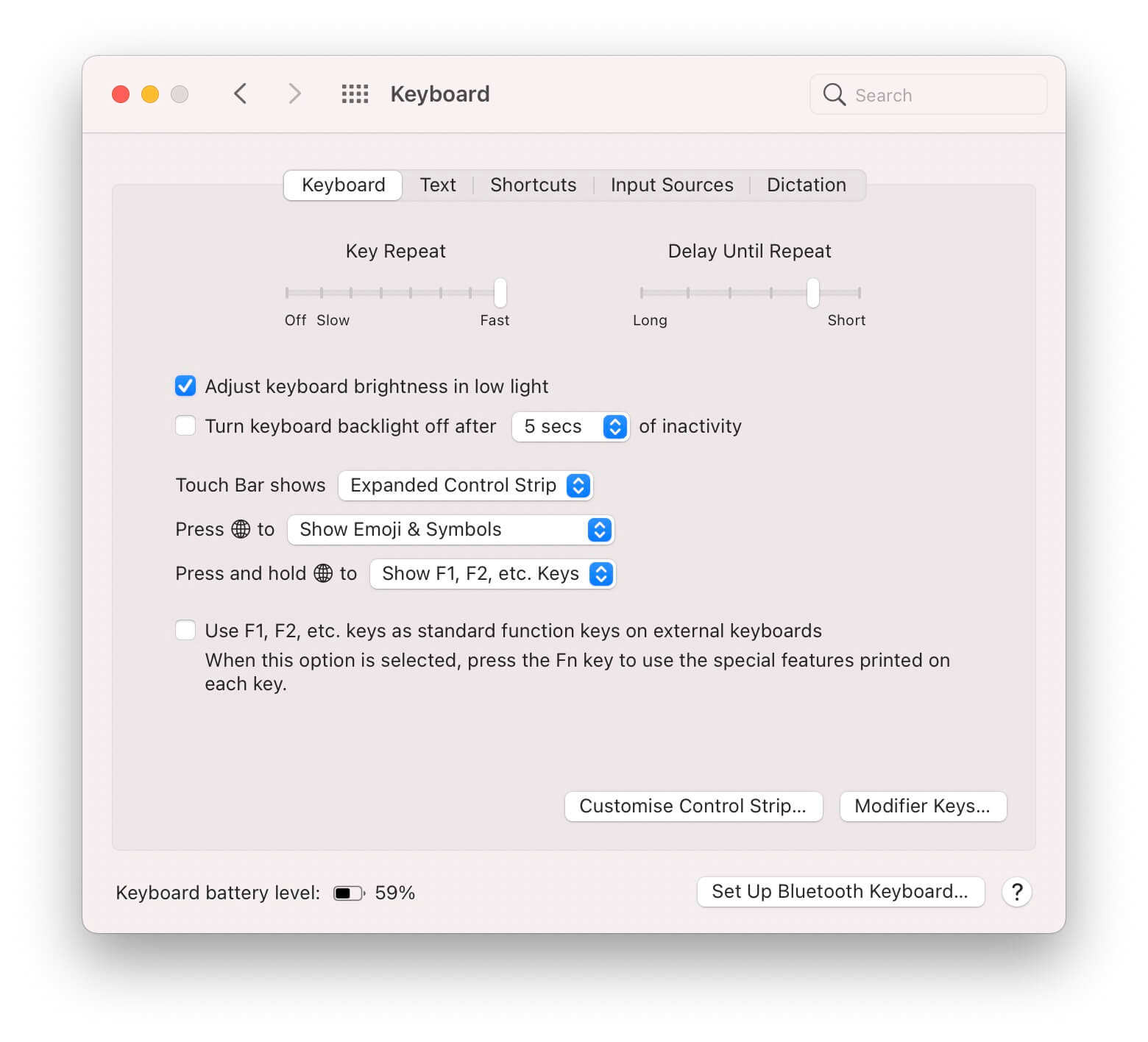
Like my trackpad, I like my keyboard to respond fast too. Key delay means a key will start repeating fast, key repeat will make it repeat fast. This is especially useful for backspace and space.
Key repeat settings are in System Preferences > Keyboard > Keyboard > Key Repeat & Delay Until Repeat.
Keyboard navigation to move focus
This setting allows you to tab through all controls in a UI, in addition to hitting return to confirm.
Focus all inputs is in System Preferences > Keyboard > Shortcuts > Accessibility > Use keyboard navigation to move focus between controls.
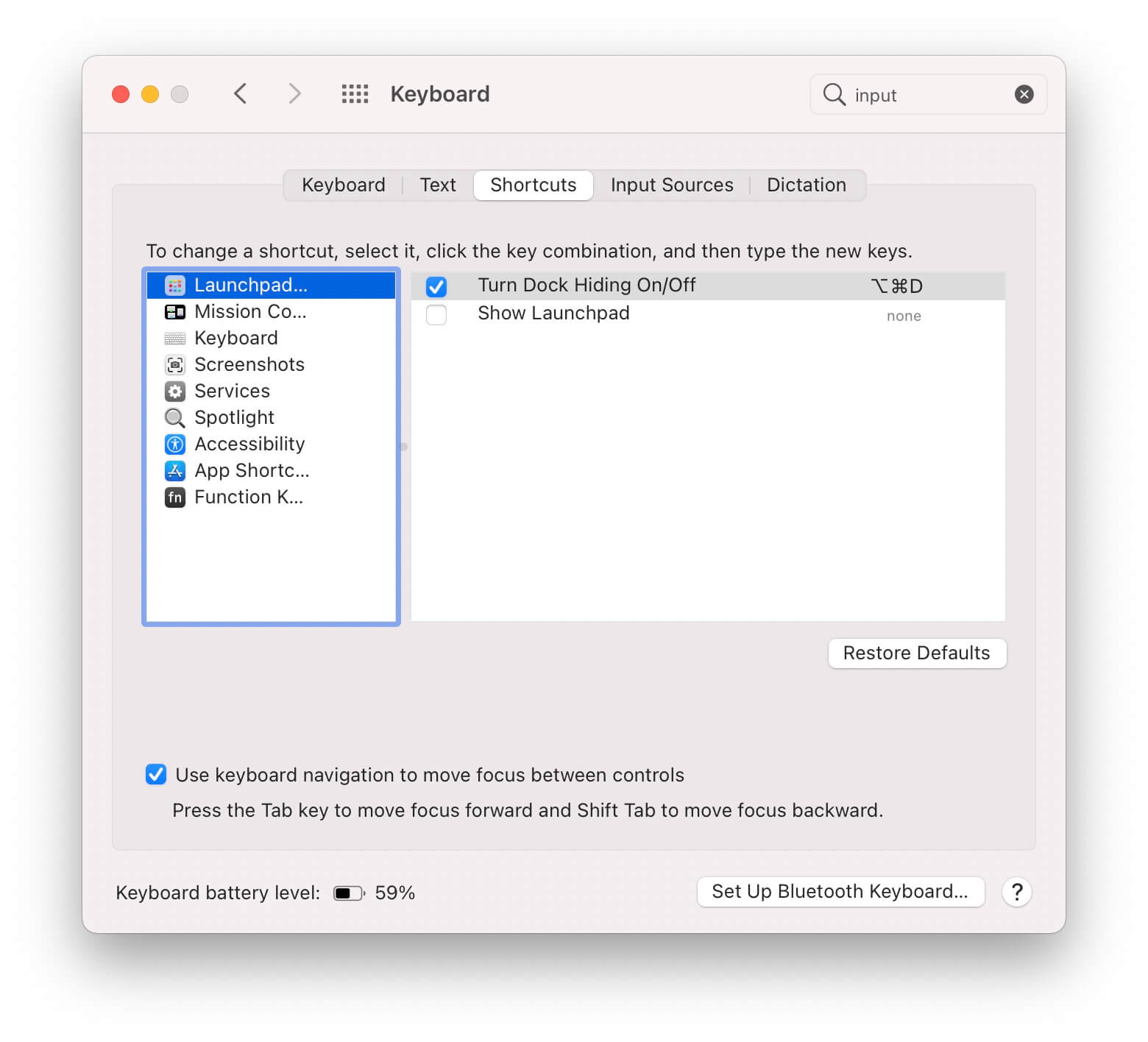
Hide the Dock
The Dock takes up a lot of space. I don’t really care about having it there persistently, so I hide it. You can set this in System Preferences > Dock & Menu Bar > Automatically hide and show the Dock.
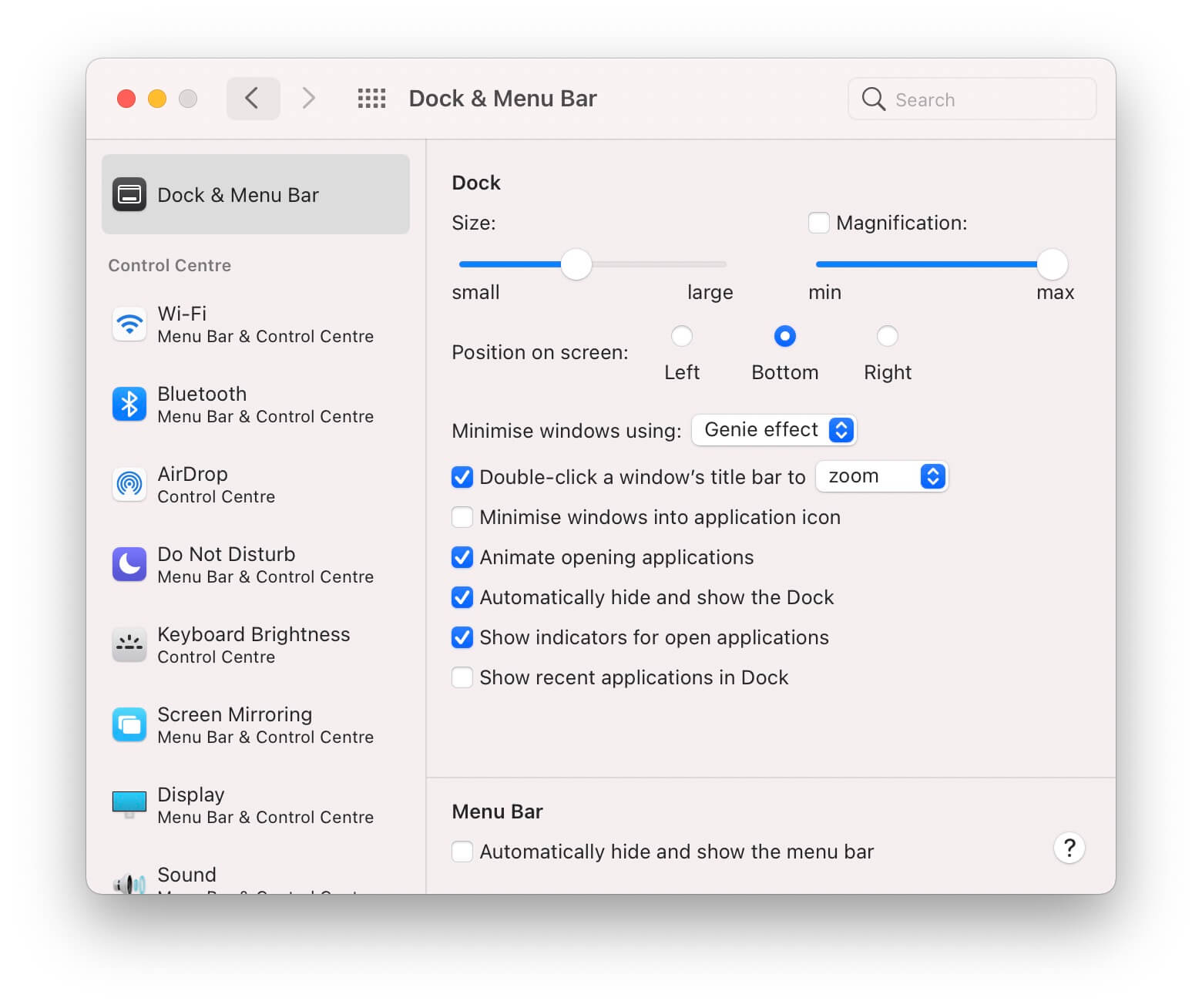
I also tried hiding the Menu Bar for a while, but I like having the clock and other Menu Bar items visible at all times.
Safari tab cycling
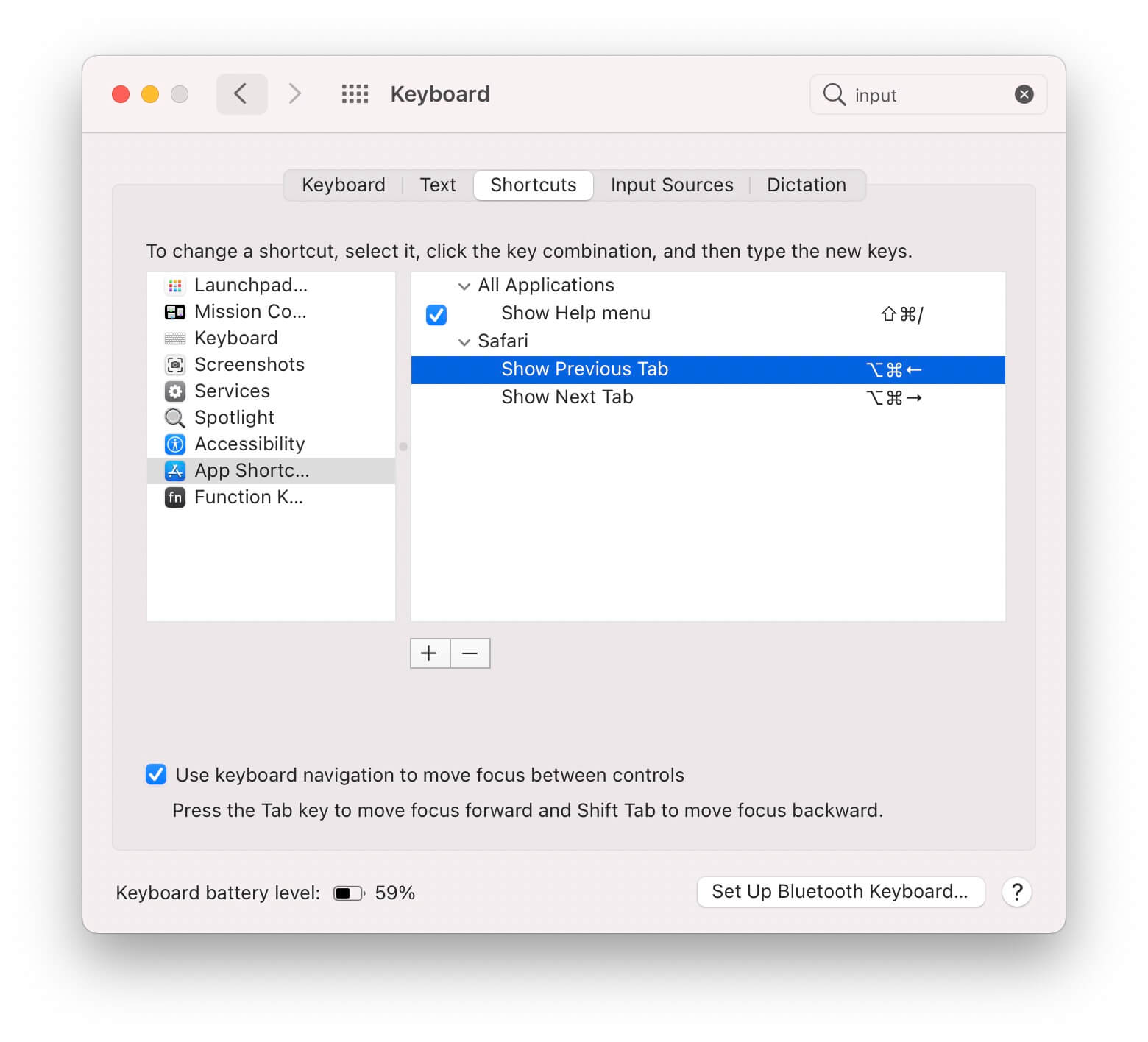
In all apps, I often cycle through tabs with Option+Command+Left and Option+Command+Right. Safari doesn’t have these keys mapped by default, so I added them myself.
You can add custom app shortcuts in System Preferences > Keyboard > Shortcuts > App Shortcuts.
Twitter Break
Around the end of January, I decided to take a break from Twitter for an undetermined amount of time. Twitter was my main source of distraction, and I wanted to find out how much it affects my productivity.
What I didn’t miss
Filling every gap in my time with scrolling through Twitter. I do believe going without Twitter improved my focus throughout the day. Whenever I saw I wasn’t logged in to Twitter, I returned to the whatever I was working on sooner.
There’s still more than enough distraction (newspapers, Hacker News, email,…) to fill the void. Getting rid of Twitter is just a small piece of it.
Drama and pointless discussions. I’m rarely part of hefty discussions, but not seeing them at all for a month made me feel a lot lighter.
Staying in the loop on content. I expected to lose track of interesting content without Twitter as a portal. It turns out most good stuff ends up in my inbox through newsletters anyway. There’s also RSS to fill the gaps.
I’m a lot less informed about world news (the US specifically) I’m reading the local newspaper more often. That informs me about what’s happening around me instead of other corners of the world.
What I missed
Fun. It turns out, Twitter is my favorite spot for non-serious content and banter. These interactions aren’t replaceable by newsletters, RSS, or other platforms. Since Twitter is the only social media platform I actively participate in, I missed this.
A platform for questions and sharing. Twitter is amazing for collective knowledge. It’s amazing that I can ask thousands of developers for guidance by posting a question. The same applies to the other way: it gives me a huge audience to share what I’m working on.
Moving forward
I’m glad I took a break, but I’m happy to be back. In the next few weeks, I’ll do a major following cleanup, refocussing my stream towards things I really enjoy and more local accounts.
The complexity that lives in the GUI
RoyalSloth reviews the three most common patterns to model interconnected state in a user interface.
- Connect the boxes: create the user avatar component and pass its instance to the inventory table component
- Lift the state up: move the internal state of the user avatar component and the state of the inventory table into a separate box/class
- Introduce a message bus: connect the inventory table and the user avatar component to the shared pipe that is used for distributing events in the application
Connect the boxes and lift the state up seem to be the most common choices for React apps; respectively prop drilling and context or single state trees (like Redux).
There’s no silver bullet to UI complexity, all methods have their caveats.
Read the full article on blog.royalsloth.eu.
jq
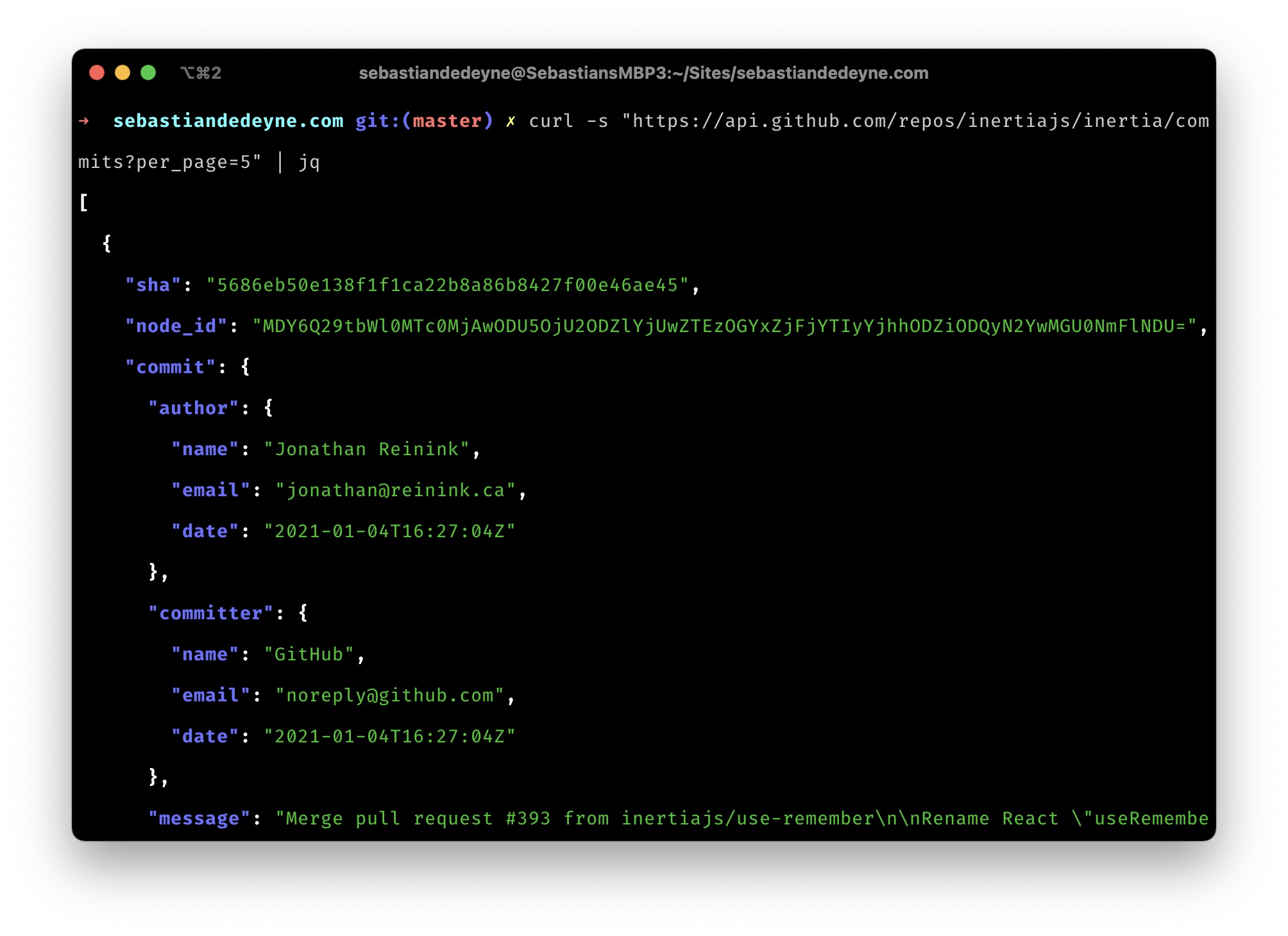
I rediscovered jq the other day, a little command line tool to format, read, and transform JSON from the command line.
Jq falls into one of my favorite categories of tools: the “simple and do one thing good” category—the Unix philosophy at its finest.
Pipe any JSON to jq. The first thing you’ll notice is the added syntax highlighting.
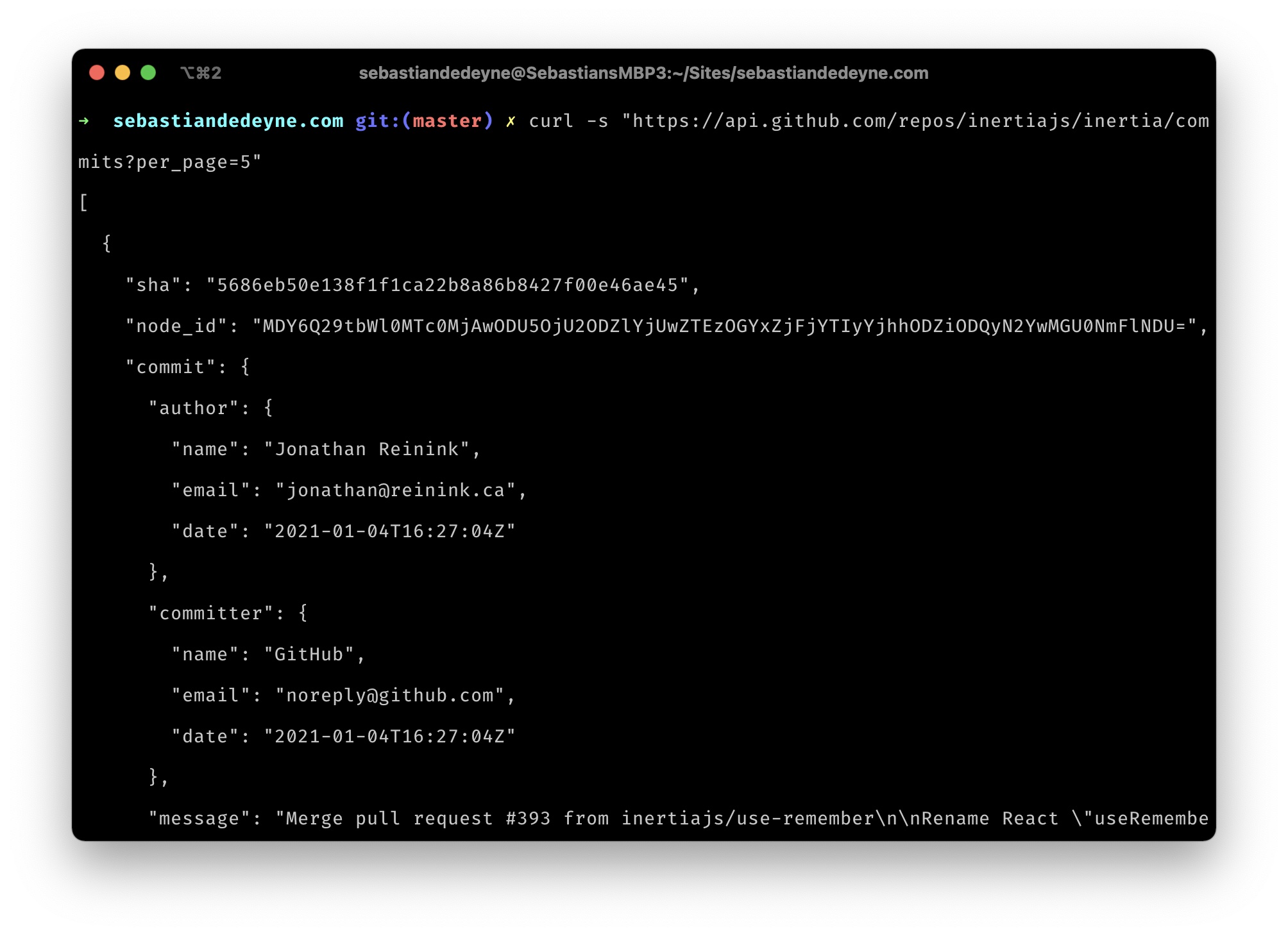
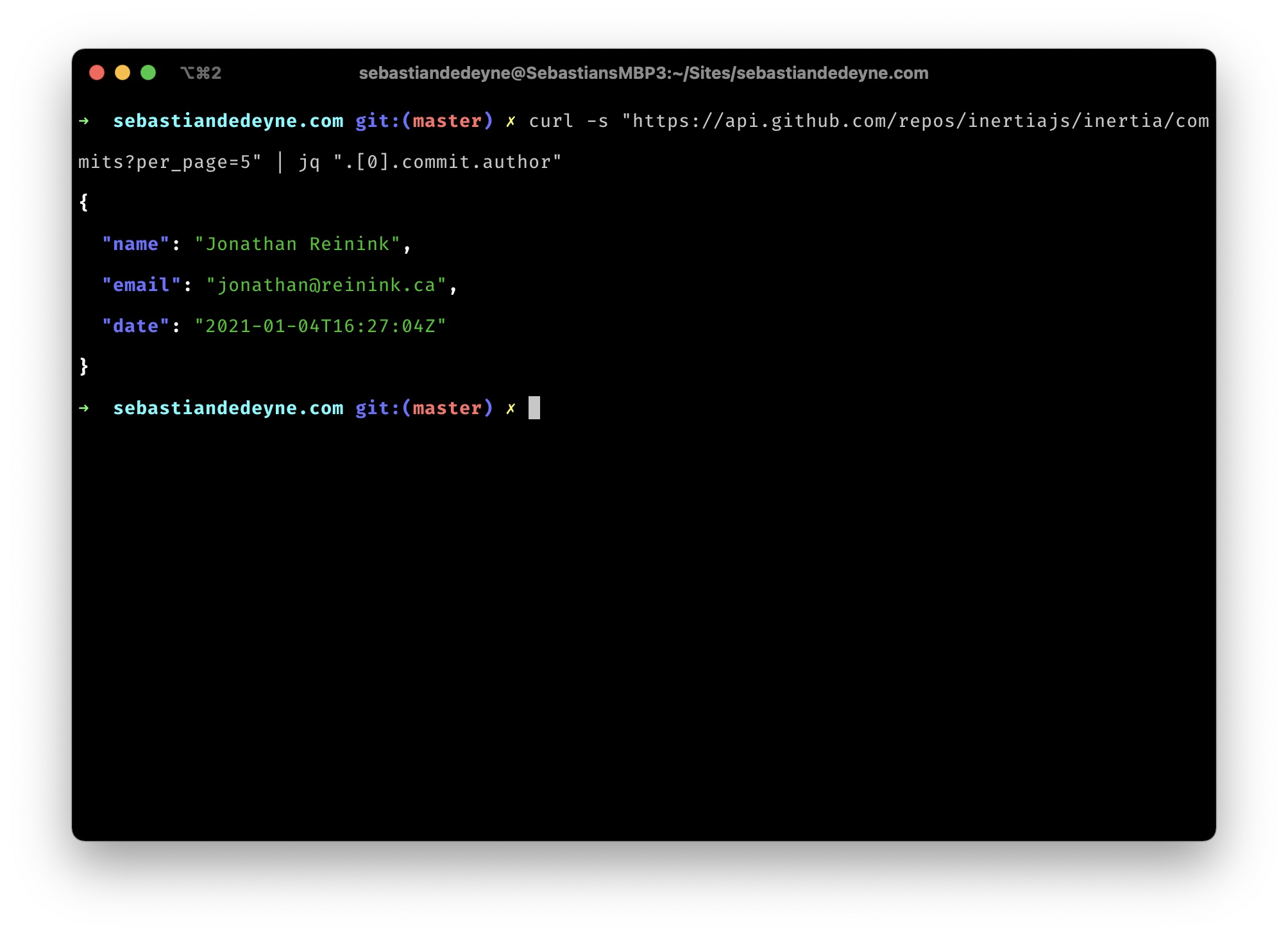
Then, you can use a path syntax to query the JSON object.
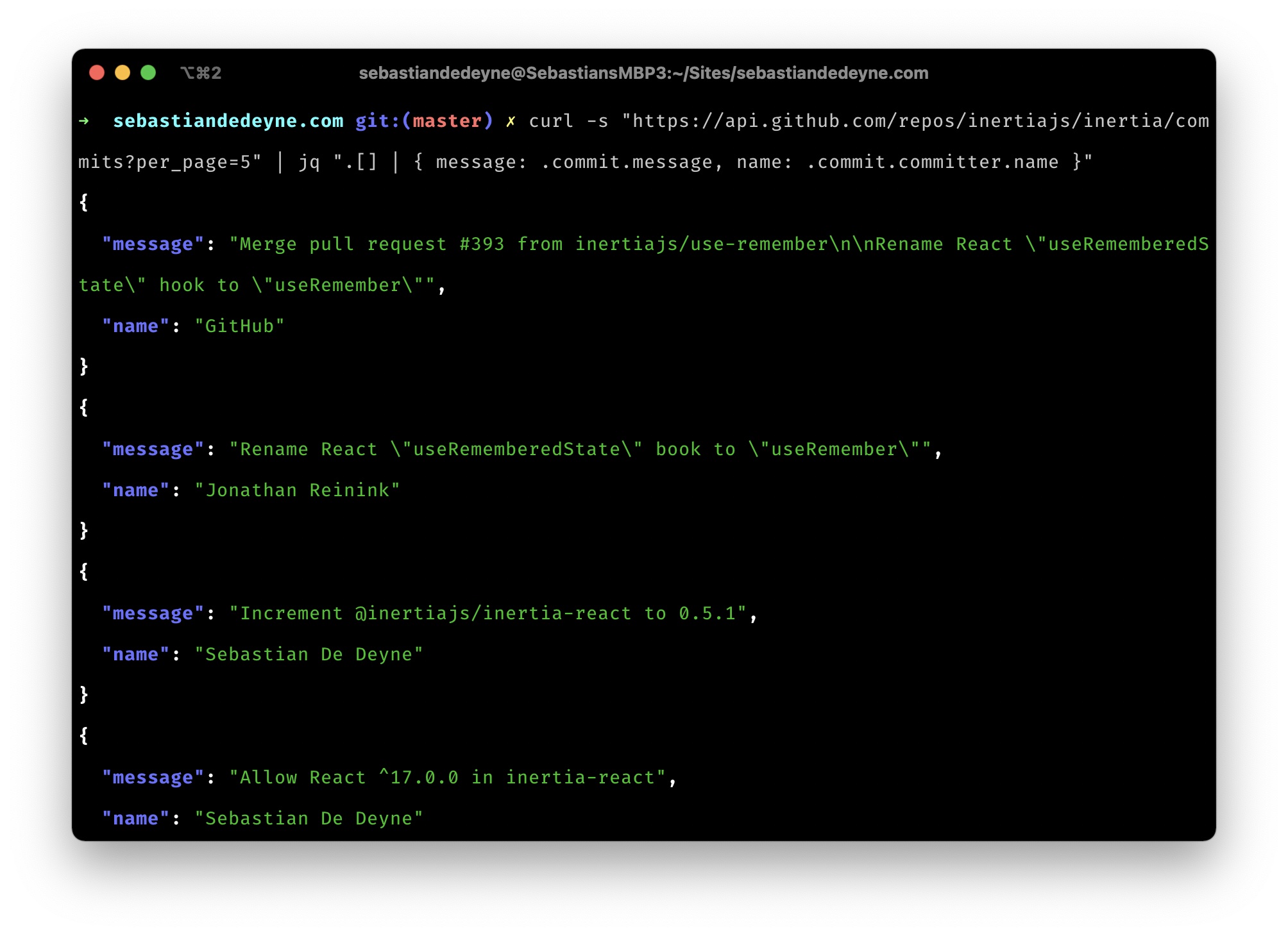
The path syntax supports arrays and deeply nested objects, and can even map data with a pipe operator.
Installing jq on a Mac is as easy as brew install jq. Read the docs for further instructions and a detailed explanation of the path syntax.
Consistency
There are two bike stalls near my apartment. One is right in front of the door, the other around the corner. The one in front of the door is closest, so when I can, I store my bike there. However, most of the time that stall is full, and I need to go around the corner instead.
That’s fine. Until a next morning–when I’m still in a daze because I’m not a morning person–I take the walk around the corner, only to realise my bike was actually in front of the door. The day before was one of those lucky days I could store my bike in front of the door.
I quit using the front stall. The less choices I have to make, the more room I have for important things.
This mindset also affects the way I code. In a large projects we’re working on, we often need form request objects. Form request objects take care of validating a requests, before they enter a controller.
<?php
class UserRequest
{
public function rules()
{
return ['name' => 'required'];
}
}
class UserController
{
public function edit(
UserRequest $request,
User $user
) {
// …
 }
}
In this case, extracting that simple rule to a form request doesn’t really benefit us, so we can just inline the rules in a $request->validate() call.
<?php
class UserController
{
public function edit(Request $request, User $user)
{
$request->validate(['name' => 'required']);
// …
 }
}
However, I needed to make a conscious decision: “Should I extract these rules to a form request?” In this case it was obvious. In other cases, It’ll be obvious to use a form request object because I need to reuse the rules across multiple controllers. In the worst cases, it’s a 50/50 split, depending on my mood the rules will or won’t end up in a request object.
That’s why we’ve decided to always use form objects, no matter how small. It removes a decision point when writing, and more importantly when reading code. If we need to debug the validation rule, we know exactly where to expect it. No 50/50 chance to end up in the wrong place.
The less choices we have to make, the more room we have to focus on the important parts of our code.