Reading List
The most recent articles from a list of feeds I subscribe to.
Go structs are copied on assignment (and other things about Go I'd missed)
I’ve been writing Go pretty casually for years – the backends for all of my playgrounds (nginx, dns, memory, more DNS) are written in Go, but many of those projects are just a few hundred lines and I don’t come back to those codebases much.
I thought I more or less understood the basics of the language, but this week I’ve been writing a lot more Go than usual while working on some upgrades to Mess with DNS, and ran into a bug that revealed I was missing a very basic concept!
Then I posted about this on Mastodon and someone linked me to this very cool site (and book) called 100 Go Mistakes and How To Avoid Them by Teiva Harsanyi. It just came out in 2022 so it’s relatively new.
I decided to read through the site to see what else I was missing, and found a couple of other misconceptions I had about Go. I’ll talk about some of the mistakes that jumped out to me the most, but really the whole 100 Go Mistakes site is great and I’d recommend reading it.
Here’s the initial mistake that started me on this journey:
mistake 1: not understanding that structs are copied on assignment
Let’s say we have a struct:
type Thing struct {
    Name string
}
and this code:
thing := Thing{"record"}
other_thing := thing
other_thing.Name = "banana"
fmt.Println(thing)
This prints “record” and not “banana” (play.go.dev link), because thing is copied when you
assign it to other_thing.
the problem this caused me: ranges
The bug I spent 2 hours of my life debugging last week was effectively this code (play.go.dev link):
type Thing struct {
  Name string
}
func findThing(things []Thing, name string) *Thing {
  for _, thing := range things {
    if thing.Name == name {
      return &thing
    }
  }
  return nil
}

func main() {
  things := []Thing{Thing{"record"}, Thing{"banana"}}
  thing := findThing(things, "record")
  thing.Name = "gramaphone"
  fmt.Println(things)
}
This prints out [{record} {banana}] – because findThing returned a copy, we didn’t change the name in the original array.
This mistake is #30 in 100 Go Mistakes.
I fixed the bug by changing it to something like this (play.go.dev link), which returns a reference to the item in the array we’re looking for instead of a copy.
func findThing(things []Thing, name string) *Thing {
  for i := range things {
    if things[i].Name == name {
      return &things[i]
    }
  }
  return nil
}
why didn’t I realize this?
When I learned that I was mistaken about how assignment worked in Go I was really taken aback, like – it’s such a basic fact about the language works! If I was wrong about that then what ELSE am I wrong about in Go????
My best guess for what happened is:
- I’ve heard for my whole life that when you define a function, you need to think about whether its arguments are passed by reference or by value
- So I’d thought about this in Go, and I knew that if you pass a struct as a value to a function, it gets copied – if you want to pass a reference then you have to pass a pointer
- But somehow it never occurred to me that you need to think about the same
thing for assignments, perhaps because in most of the other languages I
use (Python, JS, Java) I think everything is a reference anyway. Except for
in Rust, where you do have values that you make copies of but I think most of the time I had to run
.clone()explicitly. (though apparently structs will be automatically copied on assignment if the struct implements theCopytrait) - Also obviously I just don’t write that much Go so I guess it’s never come up.
mistake 2: side effects appending slices (#25)
When you subset a slice with x[2:3], the original slice and the sub-slice
share the same backing array, so if you append to the new slice, it can
unintentionally change the old slice:
For example, this code prints [1 2 3 555 5] (code on play.go.dev)
x := []int{1, 2, 3, 4, 5}
y := x[2:3]
y = append(y, 555)
fmt.Println(x)
I don’t think this has ever actually happened to me, but it’s alarming and I’m very happy to know about it.
Apparently you can avoid this problem by changing y := x[2:3] to y := x[2:3:3], which restricts the new slice’s capacity so that appending to it
will re-allocate a new slice. Here’s some code on play.go.dev that does that.
mistake 3: not understanding the different types of method receivers (#42)
This one isn’t a “mistake” exactly, but it’s been a source of confusion for me and it’s pretty simple so I’m glad to have it cleared up.
In Go you can declare methods in 2 different ways:
func (t Thing) Function()(a “value receiver”)func (t *Thing) Function()(a “pointer receiver”)
My understanding now is that basically:
- If you want the method to mutate the struct
t, you need a pointer receiver. - If you want to make sure the method doesn’t mutate the struct
t, use a value receiver.
Explanation #42 has a bunch of other interesting details though. There’s definitely still something I’m missing about value vs pointer receivers (I got a compile error related to them a couple of times in the last week that I still don’t understand), but hopefully I’ll run into that error again soon and I can figure it out.
more interesting things I noticed
Some more notes from 100 Go Mistakes:
- apparently you can name the outputs of your function (#43), though that can have issues (#44) and I’m not sure I want to
- apparently you can put tests in a different package (#90) to ensure that you only use the package’s public interfaces, which seems really useful
- there are a lots of notes about how to use contexts, channels, goroutines, mutexes, sync.WaitGroup, etc. I’m sure I have something to learn about all of those but today is not the day I’m going to learn them.
Also there are some things that have tripped me up in the past, like:
- forgetting the return statement after replying to an HTTP request (#80)
- not realizing the httptest package exists (#88)
this “100 common mistakes” format is great
I really appreciated this “100 common mistakes” format – it made it really easy for me to skim through the mistakes and very quickly mentally classify them into:
- yep, I know that
- not interested in that one right now
- WOW WAIT I DID NOT KNOW THAT, THAT IS VERY USEFUL!!!!
It looks like “100 Common Mistakes” is a series of books from Manning and they also have “100 Java Mistakes” and an upcoming “100 SQL Server Mistakes”.
Also I enjoyed what I’ve read of Effective Python by Brett Slatkin, which has a similar “here are a bunch of short Python style tips” structure where you can quickly skim it and take what’s useful to you. There’s also Effective C++, Effective Java, and probably more.
some other Go resources
other resources I’ve appreciated:
- Go by example for basic syntax
- go.dev/play
- obviously https://pkg.go.dev for documentation about literally everything
- staticcheck seems like a useful linter – for example I just started using it to tell me when I’ve forgotten to handle an error
- apparently golangci-lint includes a bunch of different linters
Entering text in the terminal is complicated
The other day I asked what folks on Mastodon find confusing about working in the terminal, and one thing that stood out to me was “editing a command you already typed in”.
This really resonated with me: even though entering some text and editing it is
a very “basic” task, it took me maybe 15 years of using the terminal every
single day to get used to using Ctrl+A to go to the beginning of the line (or
Ctrl+E for the end – I think I used Home/End instead).
So let’s talk about why entering text might be hard! I’ll also share a few tips that I wish I’d learned earlier.
it’s very inconsistent between programs
A big part of what makes entering text in the terminal hard is the inconsistency between how different programs handle entering text. For example:
- some programs (
cat,nc,git commit --interactive, etc) don’t support using arrow keys at all: if you press arrow keys, you’ll just see^[[D^[[D^[[C^[[C^ - many programs (like
irb,python3on a Linux machine and many many more) use thereadlinelibrary, which gives you a lot of basic functionality (history, arrow keys, etc) - some programs (like
/usr/bin/python3on my Mac) do support very basic features like arrow keys, but not other features likeCtrl+leftor reverse searching withCtrl+R - some programs (like the
fishshell oripython3ormicroorvim) have their own fancy system for accepting input which is totally custom
So there’s a lot of variation! Let’s talk about each of those a little more.
mode 1: the baseline
First, there’s “the baseline” – what happens if a program just accepts text by
calling fgets() or whatever and doing absolutely nothing else to provide a
nicer experience. Here’s what using these tools typically looks for me – If I
start the version of dash installed on
my machine (a pretty minimal shell) press the left arrow keys, it just prints
^[[D to the terminal.
$ ls l-^[[D^[[D^[[D
At first it doesn’t seem like all of these “baseline” tools have much in common, but there are actually a few features that you get for free just from your terminal, without the program needing to do anything special at all.
The things you get for free are:
- typing in text, obviously
- backspace
Ctrl+W, to delete the previous wordCtrl+U, to delete the whole line- a few other things unrelated to text editing (like
Ctrl+Cto interrupt the process,Ctrl+Zto suspend, etc)
This is not great, but it means that if you want to delete a word you
generally can do it with Ctrl+W instead of pressing backspace 15 times, even
if you’re in an environment which is offering you absolutely zero features.
You can get a list of all the ctrl codes that your terminal supports with stty -a.
mode 2: tools that use readline
The next group is tools that use readline! Readline is a GNU library to make entering text more pleasant, and it’s very widely used.
My favourite readline keyboard shortcuts are:
Ctrl+E(orEnd) to go to the end of the lineCtrl+A(orHome) to go to the beginning of the lineCtrl+left/right arrowto go back/forward 1 word- up arrow to go back to the previous command
Ctrl+Rto search your history
And you can use Ctrl+W / Ctrl+U from the “baseline” list, though Ctrl+U
deletes from the cursor to the beginning of the line instead of deleting the
whole line. I think Ctrl+W might also have a slightly different definition of
what a “word” is.
There are a lot more (here’s a full list), but those are the only ones that I personally use.
The bash shell is probably the most famous readline user (when you use
Ctrl+R to search your history in bash, that feature actually comes from
readline), but there are TONS of programs that use it – for example psql,
irb, python3, etc.
tip: you can make ANYTHING use readline with rlwrap
One of my absolute favourite things is that if you have a program like nc
without readline support, you can just run rlwrap nc to turn it into a
program with readline support!
This is incredible and makes a lot of tools that are borderline unusable MUCH more pleasant to use. You can even apparently set up rlwrap to include your own custom autocompletions, though I’ve never tried that.
some reasons tools might not use readline
I think reasons tools might not use readline might include:
- the program is very simple (like
catornc) and maybe the maintainers don’t want to bring in a relatively large dependency - license reasons, if the program’s license is not GPL-compatible – readline is GPL-licensed, not LGPL
- only a very small part of the program is interactive, and maybe readline
support isn’t seen as important. For example
githas a few interactive features (likegit add -p), but not very many, and usually you’re just typing a single character likeyorn– most of the time you need to really type something significant in git, it’ll drop you into a text editor instead.
For example idris2 says they don’t use readline
to keep dependencies minimal and suggest using rlwrap to get better
interactive features.
how to know if you’re using readline
The simplest test I can think of is to press Ctrl+R, and if you see:
(reverse-i-search)`':
then you’re probably using readline. This obviously isn’t a guarantee (some
other library could use the term reverse-i-search too!), but I don’t know of
another system that uses that specific term to refer to searching history.
the readline keybindings come from Emacs
Because I’m a vim user, It took me a very long time to understand where these
keybindings come from (why Ctrl+A to go to the beginning of a line??? so
weird!)
My understanding is these keybindings actually come from Emacs – Ctrl+A and
Ctrl+E do the same thing in Emacs as they do in Readline and I assume the
other keyboard shortcuts mostly do as well, though I tried out Ctrl+W and
Ctrl+U in Emacs and they don’t do the same thing as they do in the terminal
so I guess there are some differences.
There’s some more history of the Readline project here.
mode 3: another input library (like libedit)
On my Mac laptop, /usr/bin/python3 is in a weird middle ground where it
supports some readline features (for example the arrow keys), but not the
other ones. For example when I press Ctrl+left arrow, it prints out ;5D,
like this:
$ python3
>>> importt subprocess;5D
Folks on Mastodon helped me figure out that this is because in the default
Python install on Mac OS, the Python readline module is actually backed by
libedit, which is a similar library which has fewer features, presumably
because Readline is GPL licensed.
Here’s how I was eventually able to figure out that Python was using libedit on my system:
$ python3 -c "import readline; print(readline.__doc__)"
Importing this module enables command line editing using libedit readline.
Generally Python uses readline though if you install it on Linux or through Homebrew. It’s just that the specific version that Apple includes on their systems doesn’t have readline. Also Python 3.13 is going to remove the readline dependency in favour of a custom library, so “Python uses readline” won’t be true in the future.
I assume that there are more programs on my Mac that use libedit but I haven’t looked into it.
mode 4: something custom
The last group of programs is programs that have their own custom (and sometimes much fancier!) system for editing text. This includes:
- most terminal text editors (nano, micro, vim, emacs, etc)
- some shells (like fish), for example it seems like fish supports
Ctrl+Zfor undo when typing in a command. Zsh’s line editor is called zle. - some REPLs (like
ipython), for example IPython uses the prompt_toolkit library instead of readline - lots of other programs (like
atuin)
Some features you might see are:
- better autocomplete which is more customized to the tool
- nicer history management (for example with syntax highlighting) than the default you get from readline
- more keyboard shortcuts
custom input systems are often readline-inspired
I went looking at how Atuin (a wonderful tool for searching your shell history that I started using recently) handles text input. Looking at the code and some of the discussion around it, their implementation is custom but it’s inspired by readline, which makes sense to me – a lot of users are used to those keybindings, and it’s convenient for them to work even though atuin doesn’t use readline.
prompt_toolkit (the library IPython uses) is similar – it actually supports a lot of options (including vi-like keybindings), but the default is to support the readline-style keybindings.
This is like how you see a lot of programs which support very basic vim
keybindings (like j for down and k for up). For example Fastmail supports
j and k even though most of its other keybindings don’t have much
relationship to vim.
I assume that most “readline-inspired” custom input systems have various subtle incompatibilities with readline, but this doesn’t really bother me at all personally because I’m extremely ignorant of most of readline’s features. I only use maybe 5 keyboard shortcuts, so as long as they support the 5 basic commands I know (which they always do!) I feel pretty comfortable. And usually these custom systems have much better autocomplete than you’d get from just using readline, so generally I prefer them over readline.
lots of shells support vi keybindings
Bash, zsh, and fish all have a “vi mode” for entering text. In a very unscientific poll I ran on Mastodon, 12% of people said they use it, so it seems pretty popular.
Readline also has a “vi mode” (which is how Bash’s support for it works), so by extension lots of other programs have it too.
I’ve always thought that vi mode seems really cool, but for some reason even though I’m a vim user it’s never stuck for me.
understanding what situation you’re in really helps
I’ve spent a lot of my life being confused about why a command line application I was using wasn’t behaving the way I wanted, and it feels good to be able to more or less understand what’s going on.
I think this is roughly my mental flowchart when I’m entering text at a command line prompt:
- Do the arrow keys not work? Probably there’s no input system at all, but at
least I can use
Ctrl+WandCtrl+U, and I canrlwrapthe tool if I want more features. - Does
Ctrl+Rprintreverse-i-search? Probably it’s readline, so I can use all of the readline shortcuts I’m used to, and I know I can get some basic history and press up arrow to get the previous command. - Does
Ctrl+Rdo something else? This is probably some custom input library: it’ll probably act more or less like readline, and I can check the documentation if I really want to know how it works.
Being able to diagnose what’s going on like this makes the command line feel a more predictable and less chaotic.
some things this post left out
There are lots more complications related to entering text that we didn’t talk about at all here, like:
- issues related to ssh / tmux / etc
- the
TERMenvironment variable - how different terminals (gnome terminal, iTerm, xterm, etc) have different kinds of support for copying/pasting text
- unicode
- probably a lot more
Reasons to use your shell's job control
Hello! Today someone on Mastodon asked about job control (fg, bg, Ctrl+z,
wait, etc). It made me think about how I don’t use my shell’s job
control interactively very often: usually I prefer to just open a new terminal
tab if I want to run multiple terminal programs, or use tmux if it’s over ssh.
But I was curious about whether other people used job control more often than me.
So I asked on Mastodon for reasons people use job control. There were a lot of great responses, and it even made me want to consider using job control a little more!
In this post I’m only going to talk about using job control interactively (not in scripts) – the post is already long enough just talking about interactive use.
what’s job control?
First: what’s job control? Well – in a terminal, your processes can be in one of 3 states:
- in the foreground. This is the normal state when you start a process.
- in the background. This is what happens when you run
some_process &: the process is still running, but you can’t interact with it anymore unless you bring it back to the foreground. - stopped. This is what happens when you start a process and then press
Ctrl+Z. This pauses the process: it won’t keep using the CPU, but you can restart it if you want.
“Job control” is a set of commands for seeing which processes are running in a terminal and moving processes between these 3 states
how to use job control
fgbrings a process to the foreground. It works on both stopped processes and background processes. For example, if you start a background process withcat < /dev/zero &, you can bring it back to the foreground by runningfgbgrestarts a stopped process and puts it in the background.- Pressing
Ctrl+zstops the current foreground process. jobslists all processes that are active in your terminalkillsends a signal (likeSIGKILL) to a job (this is the shell builtinkill, not/bin/kill)disownremoves the job from the list of running jobs, so that it doesn’t get killed when you close the terminalwaitwaits for all background processes to complete. I only use this in scripts though.- apparently in bash/zsh you can also just type
%2instead offg %2
I might have forgotten some other job control commands but I think those are all the ones I’ve ever used.
You can also give fg or bg a specific job to foreground/background. For example if I see this in the output of jobs:
$ jobs
Job Group State   Command
1   3161  running cat < /dev/zero &
2   3264  stopped nvim -w ~/.vimkeys $argv
then I can foreground nvim with fg %2. You can also kill it with kill -9 %2, or just kill %2 if you want to be more gentle.
how is kill %2 implemented?
I was curious about how kill %2 works – does %2 just get replaced with the
PID of the relevant process when you run the command, the way environment
variables are? Some quick experimentation shows that it isn’t:
$ echo kill %2
kill %2
$ type kill
kill is a function with definition
# Defined in /nix/store/vicfrai6lhnl8xw6azq5dzaizx56gw4m-fish-3.7.0/share/fish/config.fish
So kill is a fish builtin that knows how to interpret %2. Looking at
the source code (which is very easy in fish!), it uses jobs -p %2 to expand %2
into a PID, and then runs the regular kill command.
on differences between shells
Job control is implemented by your shell. I use fish, but my sense is that the basics of job control work pretty similarly in bash, fish, and zsh.
There are definitely some shells which don’t have job control at all, but I’ve only used bash/fish/zsh so I don’t know much about that.
Now let’s get into a few reasons people use job control!
reason 1: kill a command that’s not responding to Ctrl+C
I run into processes that don’t respond to Ctrl+C pretty regularly, and it’s
always a little annoying – I usually switch terminal tabs to find and kill and
the process. A bunch of people pointed out that you can do this in a faster way
using job control!
How to do this: Press Ctrl+Z, then kill %1 (or the appropriate job number
if there’s more than one stopped/background job, which you can get from
jobs). You can also kill -9 if it’s really not responding.
reason 2: background a GUI app so it’s not using up a terminal tab
Sometimes I start a GUI program from the command line (for example with
wireshark some_file.pcap), forget to start it in the background, and don’t want it eating up my terminal tab.
How to do this:
- move the GUI program to the background by pressing
Ctrl+Zand then runningbg. - you can also run
disownto remove it from the list of jobs, to make sure that the GUI program won’t get closed when you close your terminal tab.
Personally I try to avoid starting GUI programs from the terminal if possible
because I don’t like how their stdout pollutes my terminal (on a Mac I use
open -a Wireshark instead because I find it works better but sometimes you
don’t have another choice.
reason 2.5: accidentally started a long-running job without tmux
This is basically the same as the GUI app thing – you can move the job to the background and disown it.
I was also curious about if there are ways to redirect a process’s output to a file after it’s already started. A quick search turned up this Linux-only tool which is based on nelhage’s reptyr (which lets you for example move a process that you started outside of tmux to tmux) but I haven’t tried either of those.
reason 3: running a command while using vim
A lot of people mentioned that if they want to quickly test something while
editing code in vim or another terminal editor, they like to use Ctrl+Z
to stop vim, run the command, and then run fg to go back to their editor.
You can also use this to check the output of a command that you ran before
starting vim.
I’ve never gotten in the habit of this, probably because I mostly use a GUI version of vim. I feel like I’d also be likely to switch terminal tabs and end up wondering “wait… where did I put my editor???” and have to go searching for it.
reason 4: preferring interleaved output
A few people said that they prefer to the output of all of their commands being interleaved in the terminal. This really surprised me because I usually think of having the output of lots of different commands interleaved as being a bad thing, but one person said that they like to do this with tcpdump specifically and I think that actually sounds extremely useful. Here’s what it looks like:
# start tcpdump
$ sudo tcpdump -ni any port 1234 &
tcpdump: data link type PKTAP
tcpdump: verbose output suppressed, use -v[v]... for full protocol decode
listening on any, link-type PKTAP (Apple DLT_PKTAP), snapshot length 524288 bytes

# run curl
$ curl google.com:1234
13:13:29.881018 IP 192.168.1.173.49626 > 142.251.41.78.1234: Flags [S], seq 613574185, win 65535, options [mss 1460,nop,wscale 6,nop,nop,TS val 2730440518 ecr 0,sackOK,eol], length 0
13:13:30.881963 IP 192.168.1.173.49626 > 142.251.41.78.1234: Flags [S], seq 613574185, win 65535, options [mss 1460,nop,wscale 6,nop,nop,TS val 2730441519 ecr 0,sackOK,eol], length 0
13:13:31.882587 IP 192.168.1.173.49626 > 142.251.41.78.1234: Flags [S], seq 613574185, win 65535, options [mss 1460,nop,wscale 6,nop,nop,TS val 2730442520 ecr 0,sackOK,eol], length 0

# when you're done, kill the tcpdump in the background
$ kill %1
I think it’s really nice here that you can see the output of tcpdump inline in your terminal – when I’m using tcpdump I’m always switching back and forth and I always get confused trying to match up the timestamps, so keeping everything in one terminal seems like it might be a lot clearer. I’m going to try it.
reason 5: suspend a CPU-hungry program
One person said that sometimes they’re running a very CPU-intensive program,
for example converting a video with ffmpeg, and they need to use the CPU for
something else, but don’t want to lose the work that ffmpeg already did.
You can do this by pressing Ctrl+Z to pause the process, and then run fg
when you want to start it again.
reason 6: you accidentally ran Ctrl+Z
Many people replied that they didn’t use job control intentionally, but
that they sometimes accidentally ran Ctrl+Z, which stopped whatever program was
running, so they needed to learn how to use fg to bring it back to the
foreground.
The were also some mentions of accidentally running Ctrl+S too (which stops
your terminal and I think can be undone with Ctrl+Q). My terminal totally
ignores Ctrl+S so I guess I’m safe from that one though.
reason 7: already set up a bunch of environment variables
Some folks mentioned that they already set up a bunch of environment variables that they need to run various commands, so it’s easier to use job control to run multiple commands in the same terminal than to redo that work in another tab.
reason 8: it’s your only option
Probably the most obvious reason to use job control to manage multiple processes is “because you have to” – maybe you’re in single-user mode, or on a very restricted computer, or SSH’d into a machine that doesn’t have tmux or screen and you don’t want to create multiple SSH sessions.
reason 9: some people just like it better
Some people also said that they just don’t like using terminal tabs: for instance a few folks mentioned that they prefer to be able to see all of their terminals on the screen at the same time, so they’d rather have 4 terminals on the screen and then use job control if they need to run more than 4 programs.
I learned a few new tricks!
I think my two main takeaways from thos post is I’ll probably try out job control a little more for:
- killing processes that don’t respond to Ctrl+C
- running
tcpdumpin the background with whatever network command I’m running, so I can see both of their output in the same place
New zine: How Git Works!
Hello! I’ve been writing about git on here nonstop for months, and the git zine is FINALLY done! It came out on Friday!
You can get it for $12 here: https://wizardzines.com/zines/git, or get an 14-pack of all my zines here.
Here’s the cover:
the table of contents
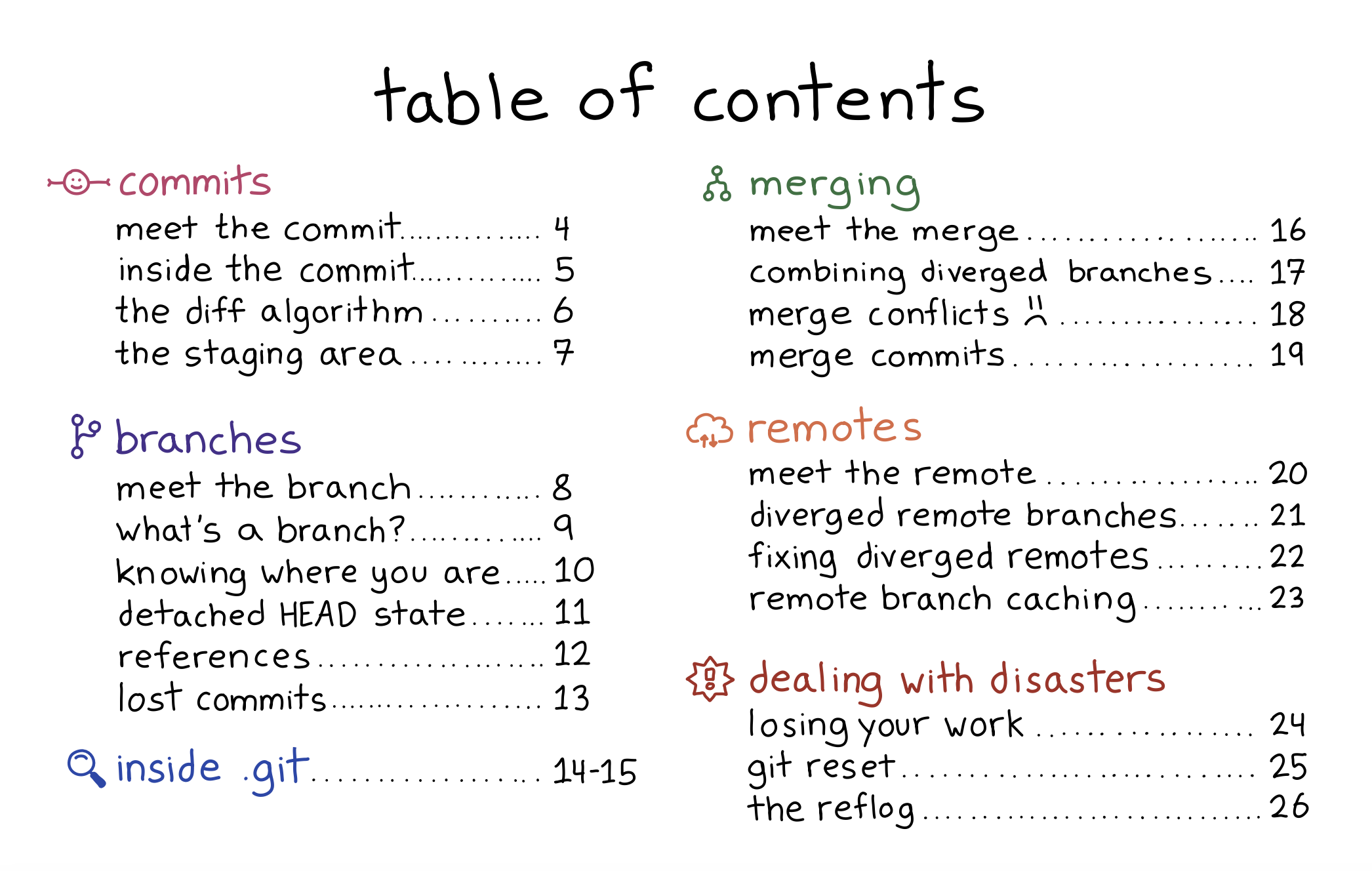
Here’s the table of contents:
who is this zine for?
I wrote this zine for people who have been using git for years and are still afraid of it. As always – I think it sucks to be afraid of the tools that you use in your work every day! I want folks to feel confident using git.
My goals are:
- To explain how some parts of git that initially seem scary (like “detached HEAD state”) are pretty straightforward to deal with once you understand what’s going on
- To show some parts of git you probably should be careful around. For example, the stash is one of the places in git where it’s easiest to lose your work in a way that’s incredibly annoying to recover form, and I avoid using it heavily because of that.
- To clear up a few common misconceptions about how the core parts of git (like commits, branches, and merging) work
what’s the difference between this and Oh Shit, Git!
You might be wondering – Julia! You already have a zine about git! What’s going on? Oh Shit, Git! is a set of tricks for fixing git messes. “How Git Works” explains how Git actually works.
Also, Oh Shit, Git! is the amazing Katie Sylor Miller’s concept: we made it into a zine because I was such a huge fan of her work on it.
I think they go really well together.
what’s so confusing about git, anyway?
This zine was really hard for me to write because when I started writing it, I’d been using git pretty confidently for 10 years. I had no real memory of what it was like to struggle with git.
But thanks to a huge amount of help from Marie as well as everyone who talked to me about git on Mastodon, eventually I was able to see that there are a lot of things about git that are counterintuitive, misleading, or just plain confusing. These include:
- confusing terminology (for example “fast-forward”, “reference”, or “remote-tracking branch”)
- misleading messages (for example how
Your branch is up to date with 'origin/main'doesn’t necessary mean that your branch is up to date with themainbranch on the origin) - uninformative output (for example how I STILL can’t reliably figure out which code comes from which branch when I’m looking at a merge conflict)
- a lack of guidance around handling diverged branches (for example how when you run
git pulland your branch has diverged from the origin, it doesn’t give you great guidance how to handle the situation) - inconsistent behaviour (for example how git’s reflogs are almost always append-only, EXCEPT for the stash, where git will delete entries when you run
git stash drop)
The more I heard from people how about how confusing they find git, the more it became clear that git really does not make it easy to figure out what its internal logic is just by using it.
handling git’s weirdnesses becomes pretty routine
The previous section made git sound really bad, like “how can anyone possibly use this thing?”.
But my experience is that after I learned what git actually means by all of its
weird error messages, dealing with it became pretty routine! I’ll see an
error: failed to push some refs to 'github.com:jvns/wizard-zines-site',
realize “oh right, probably a coworker made some changes to main since I last
ran git pull”, run git pull --rebase to incorporate their changes, and move
on with my day. The whole thing takes about 10 seconds.
Or if I see a You are in 'detached HEAD' state warning, I’ll just make sure
to run git checkout mybranch before continuing to write code. No big deal.
For me (and for a lot of folks I talk to about git!), dealing with git’s weird language can become so normal that you totally forget why anybody would even find it weird.
a little bit of internals
One of my biggest questions when writing this zine was how much to focus on
what’s in the .git directory. We ended up deciding to include a couple of
pages about internals (“inside .git”, pages 14-15), but otherwise focus more on
git’s behaviour when you use it and why sometimes git behaves in unexpected
ways.
This is partly because there are lots of great guides to git’s internals out there already (1, 2), and partly because I think even if you have read one of these guides to git’s internals, it isn’t totally obvious how to connect that information to what you actually see in git’s user interface.
For example: it’s easy to find documentation about remotes in git – for example this page says:
Remote-tracking branches […] remind you where the branches in your remote repositories were the last time you connected to them.
But even if you’ve read that, you might not realize that the statement Your branch is up to date with 'origin/main'" in git status doesn’t necessarily
mean that you’re actually up to date with the remote main branch.
So in general in the zine we focus on the behaviour you see in Git’s UI, and then explain how that relates to what’s happening internally in Git.
the cheat sheet
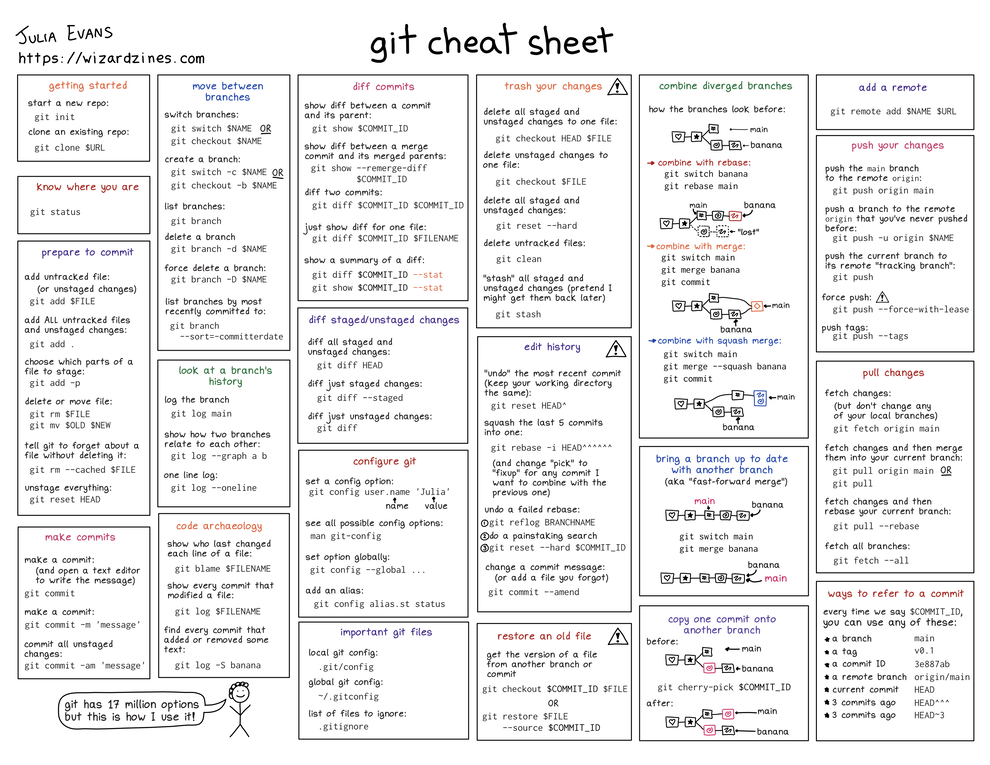
The zine also comes with a free printable cheat sheet: (click to get a PDF version)
it comes with an HTML transcript!
The zine also comes with an HTML transcript, to (hopefully) make it easier to read on a screen reader! Our Operations Manager, Lee, transcribed all of the pages and wrote image descriptions. I’d love feedback about the experience of reading the zine on a screen reader if you try it.
I really do love git
I’ve been pretty critical about git in this post, but I only write zines about technologies I love, and git is no exception.
Some reasons I love git:
- it’s fast!
- it’s backwards compatible! I learned how to use it 10 years ago and everything I learned then is still true
- there’s tons of great free Git hosting available out there (GitHub! Gitlab! a million more!), so I can easily back up all my code
- simple workflows are REALLY simple (if I’m working on a project on my own, I
can just run
git commit -am 'whatever'andgit pushover and over again and it works perfectly) - Almost every internal file in git is a pretty simple text file (or has a version which is a text file), which makes me feel like I can always understand exactly what’s going on under the hood if I want to.
I hope this zine helps some of you love it too.
people who helped with this zine
I don’t make these zines by myself!
I worked with Marie Claire LeBlanc Flanagan every morning for 8 months to write clear explanations of git.
The cover is by Vladimir Kašiković, Gersande La Flèche did copy editing, James Coglan (of the great Building Git) did technical review, our Operations Manager Lee did the transcription as well as a million other things, my partner Kamal read the zine and told me which parts were off (as he always does), and I had a million great conversations with Marco Rogers about git.
And finally, I want to thank all the beta readers! There were 66 this time which is a record! They left hundreds of comments about what was confusing, what they learned, and which of my jokes were funny. It’s always hard to hear from beta readers that a page I thought made sense is actually extremely confusing, and fixing those problems before the final version makes the zine so much better.
get the zine
Here are some links to get the zine again:
- get How Git Works
- get an 14-pack of all my zines here.
As always, you can get either a PDF version to print at home or a print version shipped to your house. The only caveat is print orders will ship in July – I need to wait for orders to come in to get an idea of how many I should print before sending it to the printer.
thank you
As always: if you’ve bought zines in the past, thank you for all your support over the years. And thanks to all of you (1000+ people!!!) who have already bought the zine in the first 3 days. It’s already set a record for most zines sold in a single day and I’ve been really blown away.
Notes on git's error messages
While writing about Git, I’ve noticed that a lot of folks struggle with Git’s error messages. I’ve had many years to get used to these error messages so it took me a really long time to understand why folks were confused, but having thought about it much more, I’ve realized that:
- sometimes I actually am confused by the error messages, I’m just used to being confused
- I have a bunch of strategies for getting more information when the error message git gives me isn’t very informative
So in this post, I’m going to go through a bunch of Git’s error messages, list a few things that I think are confusing about them for each one, and talk about what I do when I’m confused by the message.
improving error messages isn’t easy
Before we start, I want to say that trying to think about why these error messages are confusing has given me a lot of respect for how difficult maintaining Git is. I’ve been thinking about Git for months, and for some of these messages I really have no idea how to improve them.
Some things that seem hard to me about improving error messages:
- if you come up with an idea for a new message, it’s hard to tell if it’s actually better!
- work like improving error messages often isn’t funded
- the error messages have to be translated (git’s error messages are translated into 19 languages!)
That said, if you find these messages confusing, hopefully some of these notes will help clarify them a bit.
error: git push on a diverged branch
$ git push
To github.com:jvns/int-exposed
! [rejected]        main -> main (non-fast-forward)
error: failed to push some refs to 'github.com:jvns/int-exposed'
hint: Updates were rejected because the tip of your current branch is behind
hint: its remote counterpart. Integrate the remote changes (e.g.
hint: 'git pull ...') before pushing again.
hint: See the 'Note about fast-forwards' in 'git push --help' for details.

$ git status
On branch main
Your branch and 'origin/main' have diverged,
and have 2 and 1 different commits each, respectively.
Some things I find confusing about this:
- You get the exact same error message whether the branch is just behind
or the branch has diverged. There’s no way to tell which it is from this
message: you need to run
git statusorgit pullto find out. - It says
failed to push some refs, but it’s not totally clear which references it failed to push. I believe everything that failed to push is listed with! [rejected]on the previous line– in this case just themainbranch.
What I like to do if I’m confused:
- I’ll run
git statusto figure out what the state of my current branch is. - I think I almost never try to push more than one branch at a time, so I usually totally ignore git’s notes about which specific branch failed to push – I just assume that it’s my current branch
error: git pull on a diverged branch
$ git pull
hint: You have divergent branches and need to specify how to reconcile them.
hint: You can do so by running one of the following commands sometime before
hint: your next pull:
hint:
hint:   git config pull.rebase false  # merge
hint:   git config pull.rebase true   # rebase
hint:   git config pull.ff only       # fast-forward only
hint:
hint: You can replace "git config" with "git config --global" to set a default
hint: preference for all repositories. You can also pass --rebase, --no-rebase,
hint: or --ff-only on the command line to override the configured default per
hint: invocation.
fatal: Need to specify how to reconcile divergent branches.
The main thing I think is confusing here is that git is presenting you with a kind of overwhelming number of options: it’s saying that you can either:
- configure
pull.rebase false,pull.rebase true, orpull.ff onlylocally - or configure them globally
- or run
git pull --rebaseorgit pull --no-rebase
It’s very hard to imagine how a beginner to git could easily use this hint to sort through all these options on their own.
If I were explaining this to a friend, I’d say something like “you can use git pull --rebase
or git pull --no-rebase to resolve this with a rebase or merge
right now, and if you want to set a permanent preference, you can do that
with git config pull.rebase false or git config pull.rebase true.
git config pull.ff only feels a little redundant to me because that’s git’s
default behaviour anyway (though it wasn’t always).
What I like to do here:
- run
git statusto see the state of my current branch - maybe run
git log origin/mainorgit logto see what the diverged commits are - usually run
git pull --rebaseto resolve it - sometimes I’ll run
git push --forceorgit reset --hard origin/mainif I want to throw away my local work or remote work (for example because I accidentally commited to the wrong branch, or because I rangit commit --amendon a personal branch that only I’m using and want to force push)
error: git checkout asdf (a branch that doesn't exist)
$ git checkout asdf
error: pathspec 'asdf' did not match any file(s) known to git
This is a little weird because we my intention was to check out a branch,
but git checkout is complaining about a path that doesn’t exist.
This is happening because git checkout’s first argument can be either a
branch or a path, and git has no way of knowing which one you intended. This
seems tricky to improve, but I might expect something like “No such branch,
commit, or path: asdf”.
What I like to do here:
- in theory it would be good to use
git switchinstead, but I keep usinggit checkoutanyway - generally I just remember that I need to decode this as “branch
asdfdoesn’t exist”
error: git switch asdf (a branch that doesn't exist)
$ git switch asdf
fatal: invalid reference: asdf
git switch only accepts a branch as an argument (unless you pass -d), so why is it saying invalid reference: asdf instead of invalid branch: asdf?
I think the reason is that internally, git switch is trying to be helpful in its error messages: if you run git switch v0.1 to switch to a tag, it’ll say:
$ git switch v0.1
fatal: a branch is expected, got tag 'v0.1'`
So what git is trying to communicate with fatal: invalid reference: asdf is
“asdf isn’t a branch, but it’s not a tag either, or any other reference”. From my various git polls my impression is that
a lot of git users have literally no idea what a “reference” is in git, so I’m not sure if that’s coming across.
What I like to do here:
90% of the time when a git error message says reference I just mentally
replace it with branch in my head.
error: git checkout HEAD^
$ git checkout HEAD^ Note: switching to 'HEAD^'. You are in 'detached HEAD' state. You can look around, make experimental changes and commit them, and you can discard any commits you make in this state without impacting any branches by switching back to a branch. If you want to create a new branch to retain commits you create, you may do so (now or later) by using -c with the switch command. Example: git switch -cOr undo this operation with: git switch - Turn off this advice by setting config variable advice.detachedHead to false HEAD is now at 182cd3f add "swap byte order" button
This is a tough one. Definitely a lot of people are confused about this message, but obviously there's been a lot of effort to improve it too. I don't have anything smart to say about this one.
What I like to do here:
- my shell prompt tells me if I’m in detached HEAD state, and generally I can remember not to make new commits while in that state
- when I’m done looking at whatever old commits I wanted to look at, I’ll run
git checkout mainor something to go back to a branch
message: git status when a rebase is in progress
This isn’t an error message, but I still find it a little confusing on its own:
$ git status interactive rebase in progress; onto c694cf8 Last command done (1 command done): pick 0a9964d wip No commands remaining. You are currently rebasing branch 'main' on 'c694cf8'. (fix conflicts and then run "git rebase --continue") (use "git rebase --skip" to skip this patch) (use "git rebase --abort" to check out the original branch) Unmerged paths: (use "git restore --staged..." to unstage) (use "git add ..." to mark resolution) both modified: index.html no changes added to commit (use "git add" and/or "git commit -a")
Two things I think could be clearer here:
- I think it would be nice if
You are currently rebasing branch 'main' on 'c694cf8'.were on the first line instead of the 5th line – right now the first line doesn’t say which branch you’re rebasing. - In this case,
c694cf8is actuallyorigin/main, so I feel likeYou are currently rebasing branch 'main' on 'origin/main'might be even clearer.
What I like to do here:
My shell prompt includes the branch that I’m currently rebasing, so I rely on that instead of the output of git status.
error: git rebase when a file has been deleted
$ git rebase main
CONFLICT (modify/delete): index.html deleted in 0ce151e (wip) and modified in HEAD.  Version HEAD of index.html left in tree.
error: could not apply 0ce151e... wip
The thing I still find confusing about this is – index.html was modified in
HEAD. But what is HEAD? Is it the commit I was working on when I started
the merge/rebase, or is it the commit from the other branch? (the answer is
“HEAD is your branch if you’re doing a merge, and it’s the “other branch” if
you’re doing a rebase, but I always find that hard to remember)
I think I would personally find it easier to understand if the message listed the branch names if possible, something like this:
CONFLICT (modify/delete): index.html deleted on `main` and modified on `mybranch`
error: git status during a merge or rebase (who is "them"?)
$ git status On branch master You have unmerged paths. (fix conflicts and run "git commit") (use "git merge --abort" to abort the merge)Unmerged paths: (use “git add/rm
…” as appropriate to mark resolution) deleted by them: the_file no changes added to commit (use “git add” and/or “git commit -a”)
I find this one confusing in exactly the same way as the previous message: it
says deleted by them:, but what “them” refers to depends on whether you did a merge or rebase or cherry-pick.
- for a merge,
themis the other branch you merged in - for a rebase,
themis the branch that you were on when you rangit rebase - for a cherry-pick, I guess it’s the commit you cherry-picked
What I like to do if I’m confused:
- try to remember what I did
- run
git show main --stator something to see what I did on themainbranch if I can’t remember
error: git clean
$ git clean
fatal: clean.requireForce defaults to true and neither -i, -n, nor -f given; refusing to clean
I just find it a bit confusing that you need to look up what -i, -n and
-f are to be able to understand this error message. I’m personally way too
lazy to do that so even though I’ve probably been using git clean for 10
years I still had no idea what -i stood for (interactive) until I was
writing this down.
What I like to do if I’m confused:
Usually I just chaotically run git clean -f to delete all my untracked files
and hope for the best, though I might actually switch to git clean -i now
that I know what -i stands for. Seems a lot safer.
that’s all!
Hopefully some of this is helpful!