Reading List
The most recent articles from a list of feeds I subscribe to.
Let’s bring back browsing
The open web, MIDI and assistive tech: State of the Browser 2024
Yesterday, I was at State of the Browser in London. It was great to catch up with friends and make new ones, and the talks were once again very well curated. In this post, I'll share some notes from the day and the takeaways that stood out to me the most.
 The Barbican tube station
Think about funding the web ecosystem
Stephanie Stimac kicked us off with a brilliant talk on how to fund the critical infrastructure that is the web ecosystem. We couldn't browse the web without browsers, and they wouldn't exist without engines, that are hard to make, and to fund. In the current model, browsers get large amounts of money from search deals. For instance, in 2021, Google paid almost 20 billion (not a typo) to Apple to make its search engine the default (but a US federal judge ruled that such payments unlawfully limit competition). It's a lot of money, but as that money goes primarily to the browser companies, not the engines, and may go away if search deals are deemed illegal, we need to think about new ways to fund browser engines, Stephanie urged us. They could include donation based systems, tax breaks or a Web Levy. For more context, see Stephanie's slides and in the comments of w3c/breakouts-day-2024#20.
Participate in accessibility standards
Next up was fashion designer and web accessibility advocate Steve Faulkner. He shared some of his own web standards stories and gave practical tips around how to participate. Without naming (many) names, Steve very accurately explained some of the different types you'll find in standards meetings: there are well-meaning, argumentative, axe to grind, practical, clueless, old school, helpful, true-believing, revisionist and lurking type of people. There are a number of ways people do participate: you can file issues (like in w3c/wcag), comment on issues, file PRs, comment on PRs, join a Community Group or join a Working Group. Only for that very last one, you actually need to represent a W3C Member. What you do need to do, Steve warned, is to know when you don't know. It's fine to just listen before having strong opinions. Now, starting to participate can be hard and/or daunting, so to anyone reading this: feel free to slide in my DM/email, we can (always) use more perspectives.
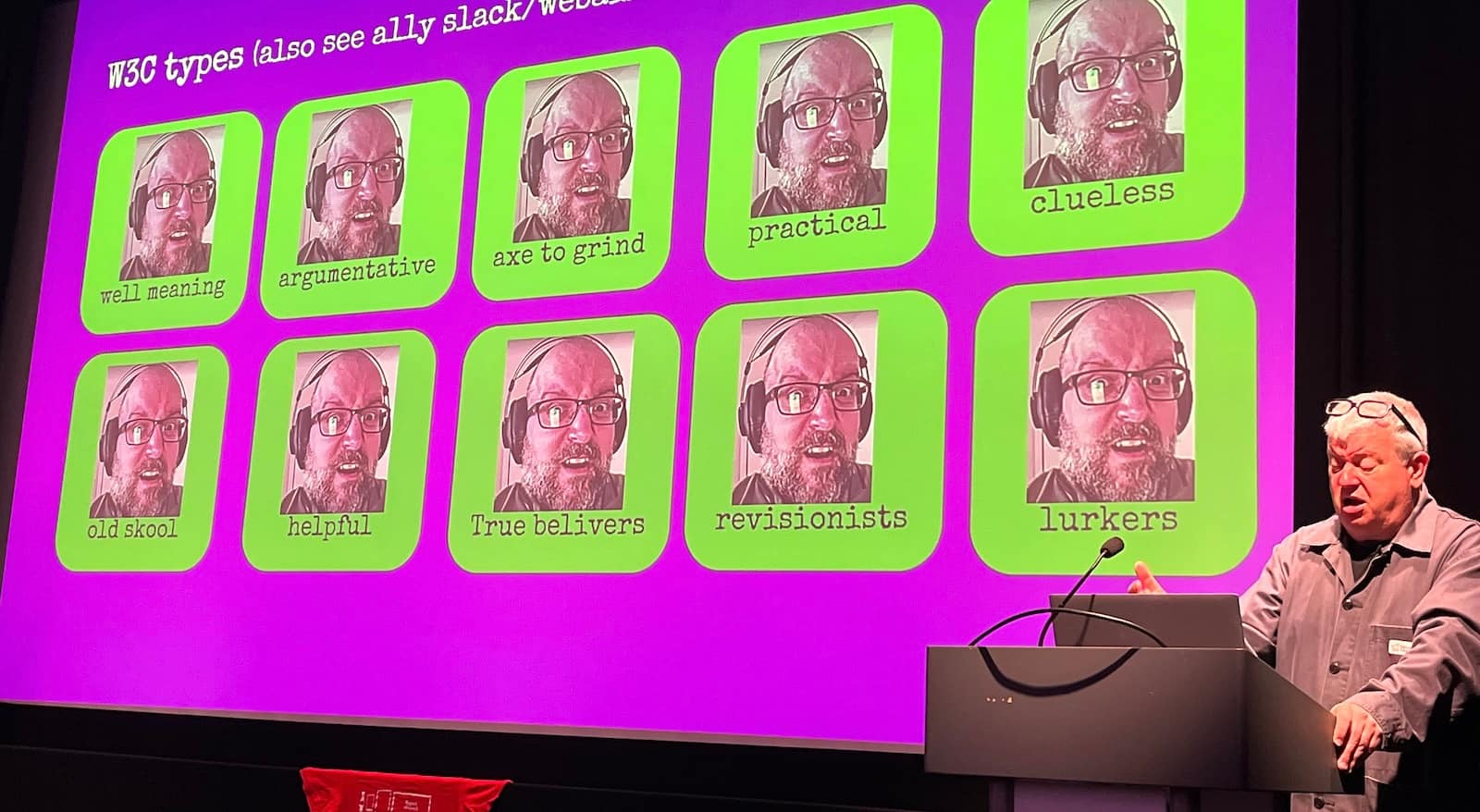 Different types
Advocate for the open web
Stuart Langridge shared the story of how he and others at Open Web Advocacy ended up talking to regulators about anti-competitive behaviour in our industry, including the fact that iOS doesn't allow for other browsers than Safari. Their work has had an enormous impact, as it helped regulators understand the nitty gritty details of what they were regulators. “The web is ours”, Stuart said and anyone who believes the same can join and help out at Open Web Advocacy, or do their own advocacy for an open web. Amen to that!
Make impact
Gayle Ngozi shared how the non-profit Code your Future works with refugees and disadvantaged people to get skills in software engineering to close the gap between them and the job market, specifically in the tech industry. She said we can all make impact by contributing stuff like laptops, time by teaching and/or opportunities by working together to launch new tech careers.
Make little web components
Personal website innovator David Darnes finally explained the inner workings of that cool button on his site that announces his name spoken by different people every time you press it. He didn't cover why it has a bias towards his father's recording, but it was very interesting nonetheless. There's one component that upgrades the standard <audio> element to be a fancy button, another that randomises the source used and one more that makes the playing state available as an attribute so that it can be used in styles. Are Web Components just for little bits? No, Dave showed that it's also used in fairly complex applications he worked on, including at Nordhealth, that has both Nuxt and Django apps using the same components. The technology, Dave said, works so well because is versatile and forgiving.
Make standards open
Katie Fenn is a huge Daft Punk fan, so she used her talk slot to play their “Around the world” with web technologies: the WebMIDI and WebAudio APIs specifically. MIDI is a technology and technical standard specced in the 80s that allows you to pass messages and information between musical instruments, like notes and special effects. Because it was, just like the W3C's web standards, completely open and royalty-free, it's changed music production forever, especially electronic music: yay open standards. You should watch this talk when it comes out. I can't wait to go play with the MIDI-enabled devices in my home.
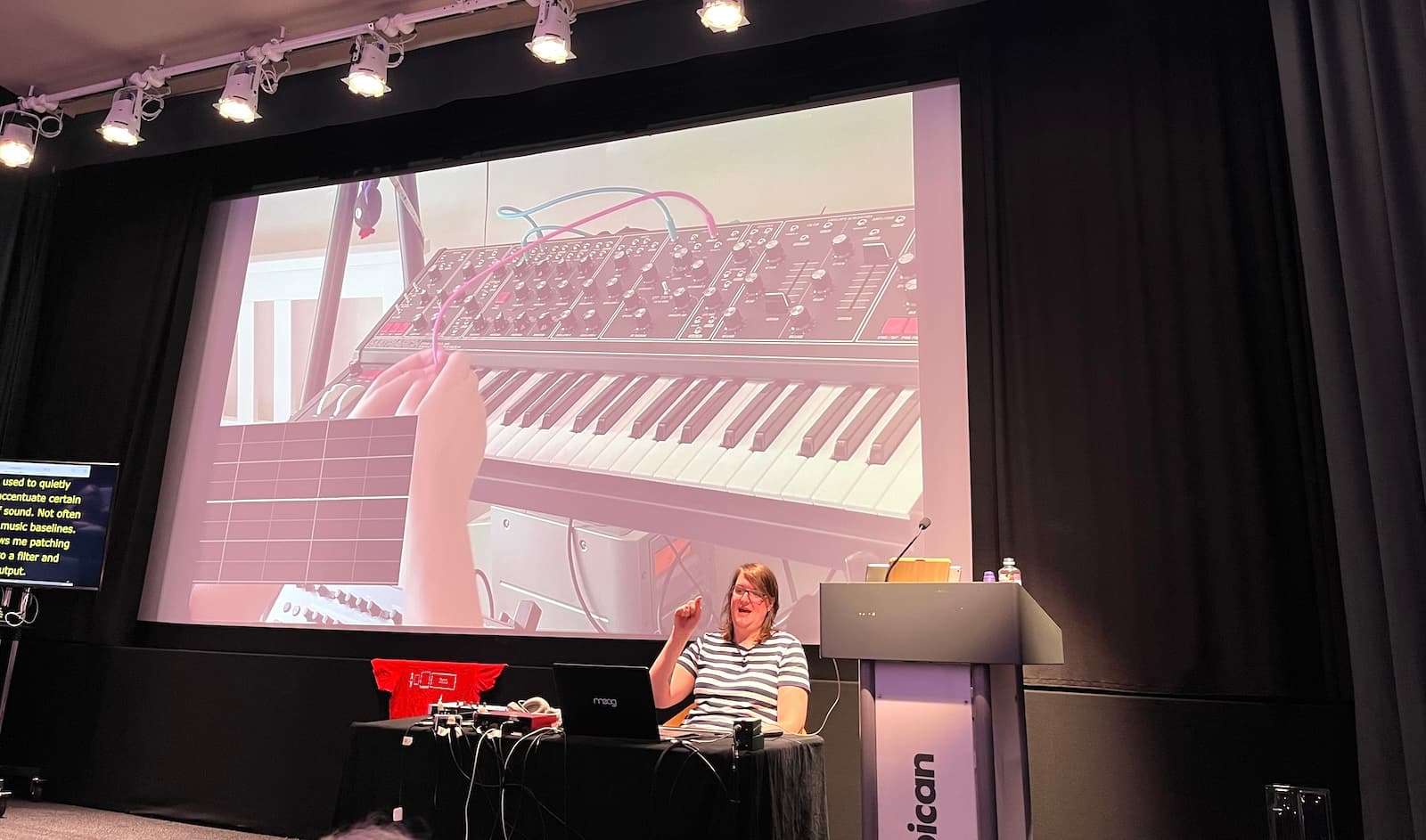 Synthesisers!
Automate more of assistive technology support testing
Lola Odelola showed how web standards work happens by using the ARIA-AT program (and ghost detection 👻) as an example. Many developers will be familiar with the ARIA Authoring Practices Guide. I am very happy for this to exist, but also see gaps in user testing (do real users actually; understand how to use the patterns?) and AT testing (do the patterns work in AT and is that consistent?). ARIA-AT, Lola showed, addresses the latter, and does so really well: there is a Selenium-like protocol called AT Driver to automatically test how the ARIA patterns work in different assistive technologies, with lots of reports as a result. Loved hearing Lola talk about this important project, that I hope can be built out further.
Use fluid scales
Richard Ruttter showed us how to use fluid scales for typography and spacing, I feel inspired to go and try that out on this website when I get a chance. See also what I wrote about that talk at Patterns Day.
Summing up
It was a lovely day, with great talks and conversations. One of the recurring themes was how much extreme capitalism affects the ecosystem we all clearly share a love for, we learned about various concrete ways in which this is at play. At the same time, we shouldn't forget to focus on what is valuable in and of itself: making music, fun buttons and UIs that include everyone. Priorities matter!
Originally posted as The open web, MIDI and assistive tech: State of the Browser 2024 on Hidde's blog.
I fixed the strawberry problem because OpenAI couldn't
A billion new developers thanks to AI?
Reasons I still love the fish shell
I wrote about how much I love fish in this blog post from 2017 and, 7 years of using it every day later, I’ve found even more reasons to love it. So I thought I’d write a new post with both the old reasons I loved it and some reasons.
This came up today because I was trying to figure out why my terminal doesn’t break anymore when I cat a binary to my terminal, the answer was “fish fixes the terminal!”, and I just thought that was really nice.
1. no configuration
In 10 years of using fish I have never found a single thing I wanted to configure. It just works the way I want. My fish config file just has:
- environment variables
- aliases (
alias ls eza,alias vim nvim, etc) - the occasional
direnv hook fish | sourceto integrate a tool like direnv - a script I run to set up my terminal colours
I’ve been told that configuring things in fish is really easy if you ever do want to configure something though.
2. autosuggestions from my shell history
My absolute favourite thing about fish is that I type, it’ll automatically suggest (in light grey) a matching command that I ran recently. I can press the right arrow key to accept the completion, or keep typing to ignore it.
Here’s what that looks like. In this example I just typed the “v” key and it guessed that I want to run the previous vim command again.

2.5 “smart” shell autosuggestions
One of my favourite subtle autocomplete features is how fish handles autocompleting commands that contain paths in them. For example, if I run:
$ ls blah.txt
that command will only be autocompleted in directories that contain blah.txt – it won’t show up in a different directory. (here’s a short comment about how it works)
As an example, if in this directory I type bash scripts/, it’ll only suggest
history commands including files that actually exist in my blog’s scripts
folder, and not the dozens of other irrelevant scripts/ commands I’ve run in
other folders.
I didn’t understand exactly how this worked until last week, it just felt like fish was magically able to suggest the right commands. It still feels a little like magic and I love it.
3. pasting multiline commands
If I copy and paste multiple lines, bash will run them all, like this:
[bork@grapefruit linux-playground (main)]$ echo hi
hi
[bork@grapefruit linux-playground (main)]$ touch blah
[bork@grapefruit linux-playground (main)]$ echo hi
hi
This is a bit alarming – what if I didn’t actually want to run all those commands?
Fish will paste them all at a single prompt, so that I can press Enter if I actually want to run them. Much less scary.
bork@grapefruit ~/work/> echo hi

                         touch blah
                         echo hi
4. nice tab completion
If I run ls and press tab, it’ll display all the filenames in a nice grid. I can use either Tab, Shift+Tab, or the arrow keys to navigate the grid.
Also, I can tab complete from the middle of a filename – if the filename starts with a weird character (or if it’s just not very unique), I can type some characters from the middle and press tab.
Here’s what the tab completion looks like:
bork@grapefruit ~/work/> ls
api/  blah.py     fly.toml   README.md
blah  Dockerfile  frontend/  test_websocket.sh
I honestly don’t complete things other than filenames very much so I can’t speak to that, but I’ve found the experience of tab completing filenames to be very good.
5. nice default prompt (including git integration)
Fish’s default prompt includes everything I want:
- username
- hostname
- current folder
- git integration
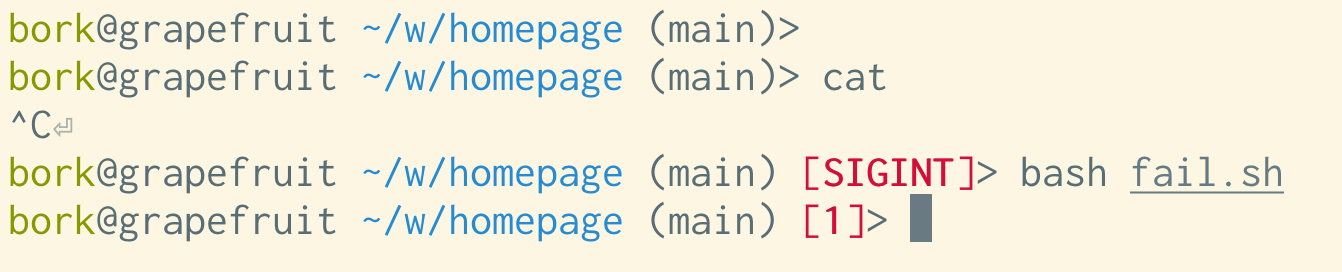
- status of last command exit (if the last command failed)
Here’s a screenshot with a few different variations on the default prompt,
including if the last command was interrupted (the SIGINT) or failed.
6. nice history defaults
In bash, the maximum history size is 500 by default, presumably because computers used to be slow and not have a lot of disk space. Also, by default, commands don’t get added to your history until you end your session. So if your computer crashes, you lose some history.
In fish:
- the default history size is 256,000 commands. I don’t see any reason I’d ever need more.
- if you open a new tab, everything you’ve ever run (including commands in open sessions) is immediately available to you
- in an existing session, the history search will only include commands from the current session, plus everything that was in history at the time that you started the shell
I’m not sure how clearly I’m explaining how fish’s history system works here, but it feels really good to me in practice. My impression is that the way it’s implemented is the commands are continually added to the history file, but fish only loads the history file once, on startup.
I’ll mention here that if you want to have a fancier history system in another shell it might be worth checking out atuin or fzf.
7. press up arrow to search history
I also like fish’s interface for searching history: for example if I want to edit my fish config file, I can just type:
$ config.fish
and then press the up arrow to go back the last command that included config.fish. That’ll complete to:
$ vim ~/.config/fish/config.fish
and I’m done. This isn’t so different from using Ctrl+R in bash to search
your history but I think I like it a little better over all, maybe because
Ctrl+R has some behaviours that I find confusing (for example you can
end up accidentally editing your history which I don’t like).
8. the terminal doesn’t break
I used to run into issues with bash where I’d accidentally cat a binary to
the terminal, and it would break the terminal.
Every time fish displays a prompt, it’ll try to fix up your terminal so that you don’t end up in weird situations like this. I think this is some of the code in fish to prevent broken terminals.
Some things that it does are:
- turn on
echoso that you can see the characters you type - make sure that newlines work properly so that you don’t get that weird staircase effect
- reset your terminal background colour, etc
I don’t think I’ve run into any of these “my terminal is broken” issues in a very long time, and I actually didn’t even realize that this was because of fish – I thought that things somehow magically just got better, or maybe I wasn’t making as many mistakes. But I think it was mostly fish saving me from myself, and I really appreciate that.
9. Ctrl+S is disabled
Also related to terminals breaking: fish disables Ctrl+S (which freezes your terminal and then you need to remember to press Ctrl+Q to unfreeze it). It’s a feature that I’ve never wanted and I’m happy to not have it.
Apparently you can disable Ctrl+S in other shells with stty -ixon.
10. nice syntax highlighting
By default commands that don’t exist are highlighted in red, like this.

11. easier loops
I find the loop syntax in fish a lot easier to type than the bash syntax. It looks like this:
for i in *.yaml
  echo $i
end
Also it’ll add indentation in your loops which is nice.
12. easier multiline editing
Related to loops: you can edit multiline commands much more easily than in bash (just use the arrow keys to navigate the multiline command!). Also when you use the up arrow to get a multiline command from your history, it’ll show you the whole command the exact same way you typed it instead of squishing it all onto one line like bash does:
$ bash
$ for i in *.png
> do
> echo $i
> done
$ # press up arrow
$ for i in *.png; do echo $i; done ink
13. Ctrl+left arrow
This might just be me, but I really appreciate that fish has the Ctrl+left arrow / Ctrl+right arrow keyboard shortcut for moving between
words when writing a command.
I’m honestly a bit confused about where this keyboard shortcut is coming from
(the only documented keyboard shortcut for this I can find in fish is Alt+left arrow / Alt + right arrow which seems to do the same thing), but I’m pretty
sure this is a fish shortcut.
A couple of notes about getting this shortcut to work / where it comes from:
- one person said they needed to switch their terminal emulator from the “Linux console” keybindings to “Default (XFree 4)” to get it to work in fish
- on Mac OS,
Ctrl+left arrowswitches workspaces by default, so I had to turn that off. - Also apparently Ubuntu configures libreadline in
/etc/inputrcto makeCtrl+left/right arrowgo back/forward a word, so it’ll work in bash on Ubuntu and maybe other Linux distros too. Here’s a stack overflow question talking about that
a downside: not everything has a fish integration
Sometimes tools don’t have instructions for integrating them with fish. That’s annoying, but:
- I’ve found this has gotten better over the last 10 years as fish has gotten more popular. For example Python’s virtualenv has had a fish integration for a long time now.
- If I need to run a POSIX shell command real quick, I can always just run
bashorzsh - I’ve gotten much better over the years at translating simple commands to fish syntax when I need to
My biggest day-to-day to annoyance is probably that for whatever reason I’m
still not used to fish’s syntax for setting environment variables, I get confused
about set vs set -x.
another downside: fish_add_path
fish has a function called fish_add_path that you can run to add a directory
to your PATH like this:
fish_add_path /some/directory
I love the idea of it and I used to use it all the time, but I’ve stopped using it for two reasons:
- Sometimes
fish_add_pathwill update thePATHfor every session in the future (with a “universal variable”) and sometimes it will update thePATHjust for the current session. It’s hard for me to tell which one it will do: in theory the docs explain this but I could not understand them. - If you ever need to remove the directory from your
PATHa few weeks or months later because maybe you made a mistake, that’s also kind of hard to do (there are instructions in this comments of this github issue though).
Instead I just update my PATH like this, similarly to how I’d do it in bash:
set PATH $PATH /some/directory/bin
on POSIX compatibility
When I started using fish, you couldn’t do things like cmd1 && cmd2 – it
would complain “no, you need to run cmd1; and cmd2” instead.
It seems like over the years fish has started accepting a little more POSIX-style syntax than it used to, like:
cmd1 && cmd2export a=bto set an environment variable (though this seems a bit limited, you can’t doexport PATH=$PATH:/whateverso I think it’s probably better to learnsetinstead)
on fish as a default shell
Changing my default shell to fish is always a little annoying, I occasionally get myself into a situation where
- I install fish somewhere like maybe
/home/bork/.nix-stuff/bin/fish - I add the new fish location to
/etc/shellsas an allowed shell - I change my shell with
chsh - at some point months/years later I reinstall fish in a different location for some reason and remove the old one
- oh no!!! I have no valid shell! I can’t open a new terminal tab anymore!
This has never been a major issue because I always have a terminal open somewhere where I can fix the problem and rescue myself, but it’s a bit alarming.
If you don’t want to use chsh to change your shell to fish (which is very reasonable,
maybe I shouldn’t be doing that), the Arch wiki page has a couple of good suggestions –
either configure your terminal emulator to run fish or add an exec fish to
your .bashrc.
I’ve never really learned the scripting language
Other than occasionally writing a for loop interactively on the command line, I’ve never really learned the fish scripting language. I still do all of my shell scripting in bash.
I don’t think I’ve ever written a fish function or if statement.
it seems like fish is getting pretty popular
I ran a highly unscientific poll on Mastodon asking people what shell they use interactively. The results were (of 2600 responses):
- 46% bash
- 49% zsh
- 16% fish
- 5% other
I think 16% for fish is pretty remarkable, since (as far as I know) there isn’t any system where fish is the default shell, and my sense is that it’s very common to just stick to whatever your system’s default shell is.
It feels like a big achievement for the fish project, even if maybe my Mastodon followers are more likely than the average shell user to use fish for some reason.
who might fish be right for?
Fish definitely isn’t for everyone. I think I like it because:
- I really dislike configuring my shell (and honestly my dev environment in general), I want things to “just work” with the default settings
- fish’s defaults feel good to me
- I don’t spend that much time logged into random servers using other shells so there’s not too much context switching
- I liked its features so much that I was willing to relearn how to do a few
“basic” shell things, like using parentheses
(seq 1 10)to run a command instead of backticks or usingsetinstead ofexport
Maybe you’re also a person who would like fish! I hope a few more of the people who fish is for can find it, because I spend so much of my time in the terminal and it’s made that time much more pleasant.